
Installation
This guide will walk you through installing Pygame Studio and verifying the installation on your system.
Prerequisites
Section titled “Prerequisites”Ensure you have Python 3.9 or higher installed on your machine.
You can check your Python version by running this command in your terminal:
python --versionInstall Pygame Studio
Section titled “Install Pygame Studio”Open your terminal and run the following pip command:
pip install --upgrade pygamestudioNote: Since current releases are development versions, please include —upgrade to ensure pip installs the latest development version instead of an older cached one.
This command will automatically download and install the latest stable version of Pygame Studio and all required dependencies.
| Name | Version |
|---|---|
| pygame-ce | >=2.5.6 |
| PySide6 | >=6.10.0 |
| platformdirs | >=3.5.1 |
| numpy | >=1.26.0 |
| pyinstaller | >=6.18.0 |
Verify the Installation
Section titled “Verify the Installation”After installation, run the following command in your terminal:
pygamestudioOr use the shortcut command:
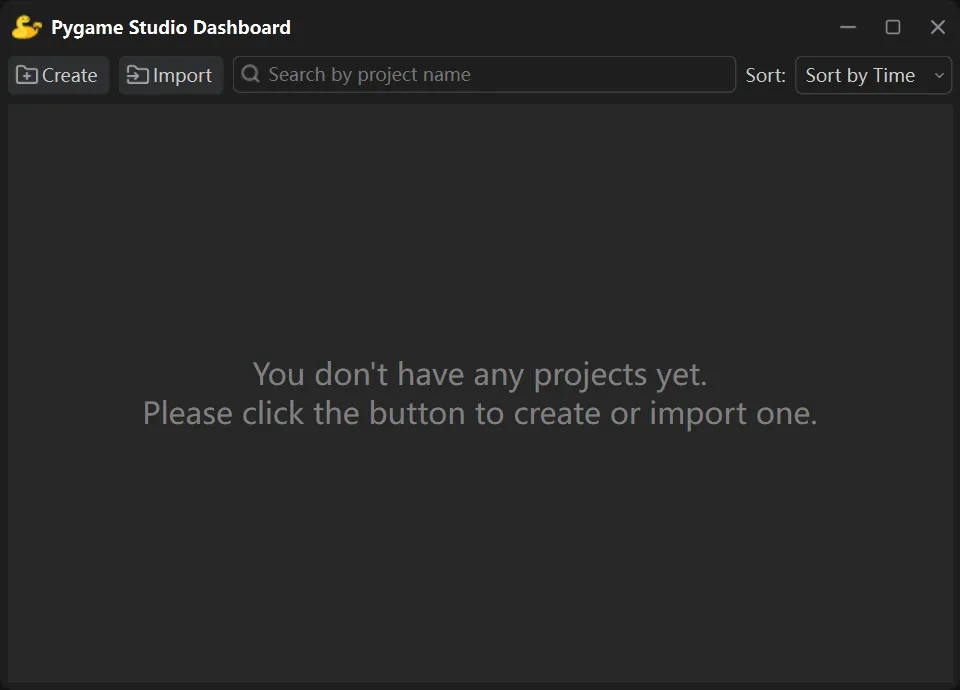
pygsIf the Pygame Studio editor launches successfully, your installation is complete.
Next Steps
Section titled “Next Steps”Once installed, you’re ready to start creating projects with Pygame Studio!