
AI Agent
The AI Agent is a chat window inside the editor. You describe what you want in one sentence — “create a rectangle object and attach a script to it”, “why does my player fall through the ground?” — and the agent does it in the project you have open.
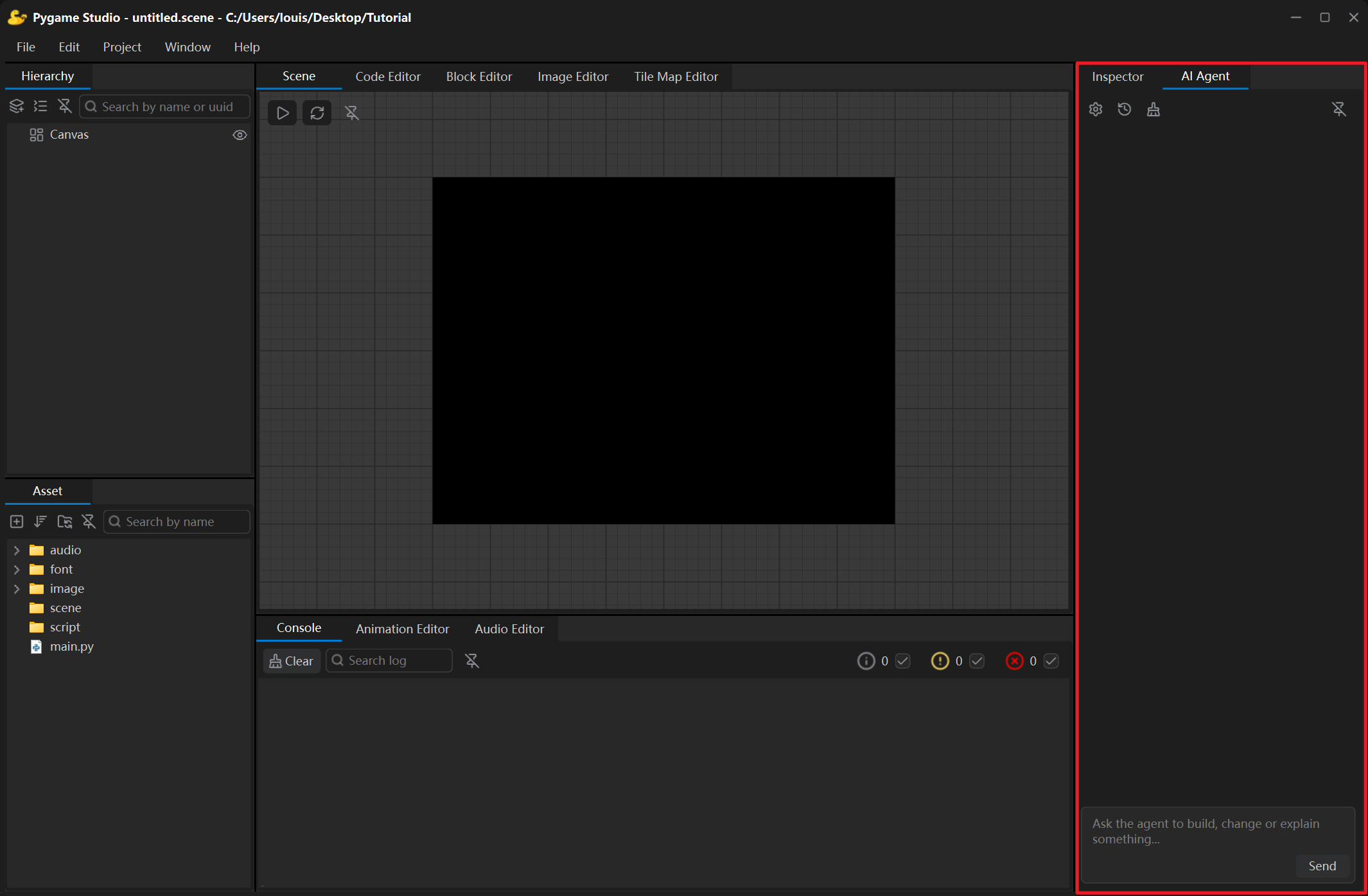
Talking to the agent
Section titled “Talking to the agent”| Control | What it does |
|---|---|
| Input box | Type your request and press Enter to send it (Shift + Enter for a new line). |
| Send | The same as pressing Enter; the button sits in the lower-right corner inside the input box. |
| Stop | Interrupts the answer being generated; you can send a new message afterwards. |
| Clear | Empties the current conversation. |
| Settings | Opens the settings window to choose the model. |
While the agent works, the status line under the transcript shows what it is doing (Thinking..., Calling create_object..., Waiting for your confirmation...).
What the agent can do
Section titled “What the agent can do”The agent reads and writes the open project through the editor’s own commands:
| Area | Examples |
|---|---|
| Project | Look at the folder structure, read and write .py scripts, create files. |
| Scene | Create, find, move, resize and delete objects, change their properties, read the hierarchy. |
| Game | Run and stop the project, read the log output. |
| Assets | List the images, sounds and fonts of the project. |
| Panels | Open a script in the Block Editor and change its blocks, draw and save in the Image Editor, edit tile map layers and cells, open and control playback in the Audio Player — and bring any panel to the front. |
| Build | Start a desktop or web build, watch the progress, stop the build and open the output folder. |
Every change the agent makes is a normal, undoable editor action: press Ctrl + Z to roll it back step by step.
Confirming changes
Section titled “Confirming changes”With Ask before every change ticked in the agent settings, the agent asks for permission before it changes the project. With the box unticked it completes a series of changes without stopping; if you are not happy with the result, Ctrl + Z still undoes it.
| Button | Effect |
|---|---|
| Allow | The tool runs once. |
| Deny | The call is skipped; the agent is told the result and continues with the next step. |
Agent settings
Section titled “Agent settings”Click the gear button in the window toolbar to choose the model:
| Choice | Fields | Notes |
|---|---|---|
| DeepSeek / OpenAI models | Model, API key | The request URL follows the model name (deepseek-flash, deepseek-v4-pro, gpt-4o-mini); only the key has to be filled in. |
| Local model (Ollama) | Model | Run Ollama on this computer first (http://127.0.0.1:11434), then enter the name of a downloaded model — no key needed. |
| Custom (OpenAI compatible) | Base URL, model, API key | For any other OpenAI-compatible endpoint. |
The API key is stored in the editor’s settings file on your computer and is only ever sent to the endpoint you selected. Saving the settings starts a new conversation — the new model does not know what was discussed before.
Long multi-step requests pause after a series of tool calls: click Continue to let the agent pick up exactly where it stopped, or Cancel to end the turn (the conversation is kept; the next message starts a new turn).