Dashboard
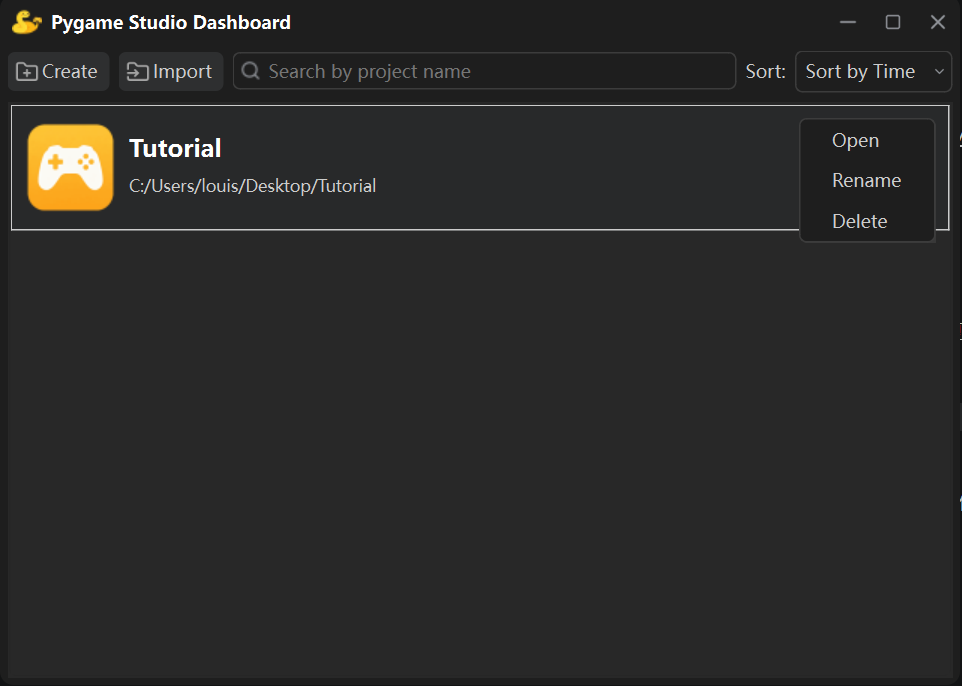
The Dashboard is the window that appears first when Pygame Studio starts. It lists every project you have created or imported, and it is where projects are created, renamed and deleted.
Toolbar
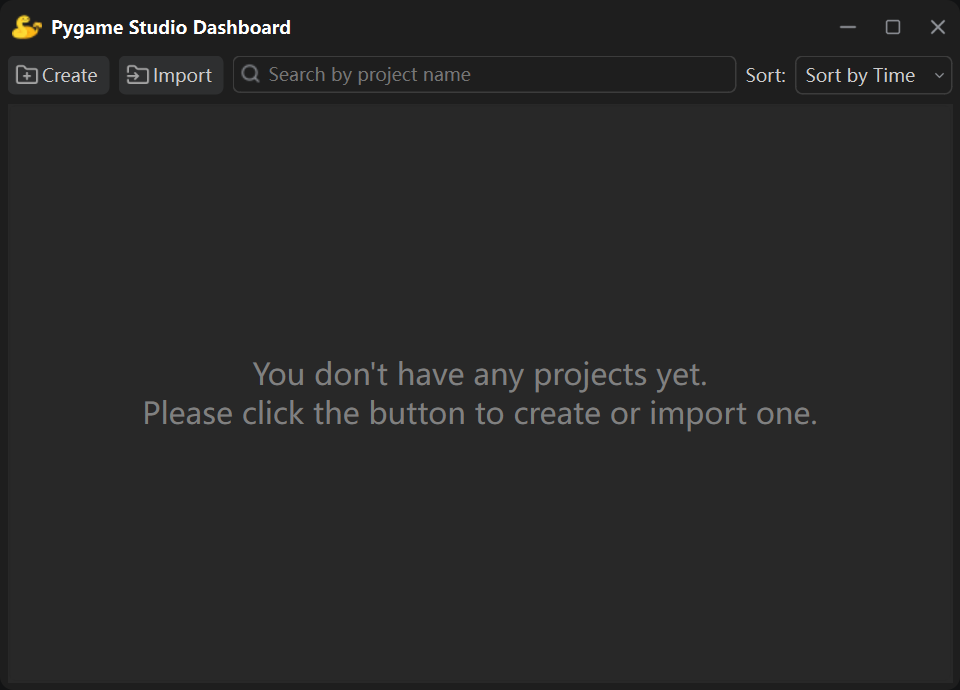
Section titled “Toolbar”| Control | What it does |
|---|---|
| Create | Opens the new project dialog. |
| Import | Adds an existing Pygame Studio project from your computer. |
| Search by project name | Searches the projects you have created or imported, by name. |
| Sort | Orders the projects by Time, Name or Path. |
The sort order is remembered, so the list keeps the same order the next time you open the editor.
Creating a project
Section titled “Creating a project”Click Create and fill in the dialog:
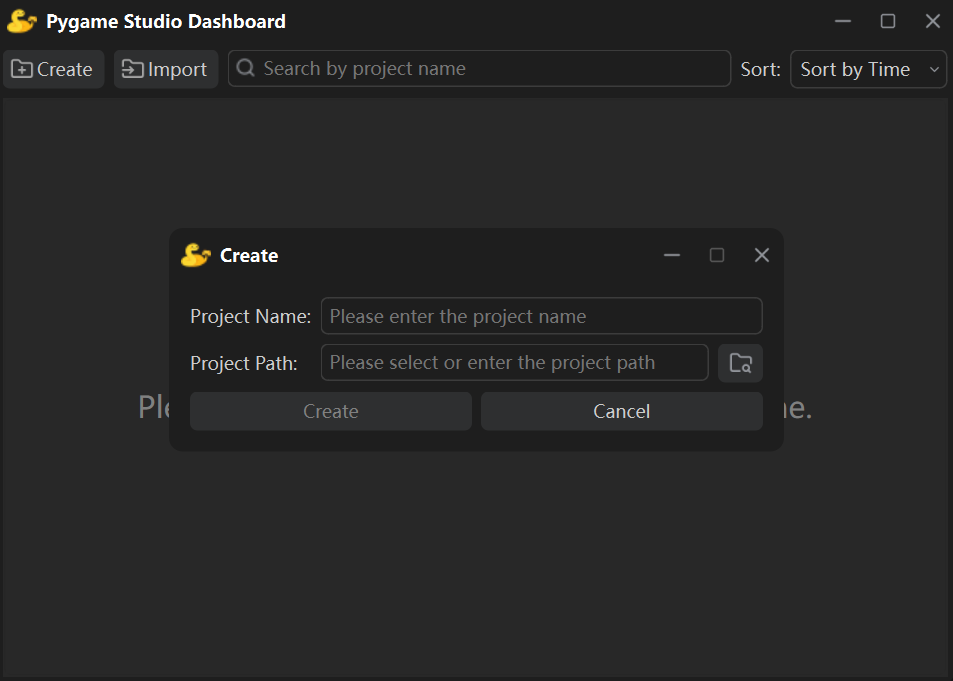
- Project Name — also the project folder name; it must not collide with an existing folder.
- Project Path — where the project is stored; click Browse to choose the folder.
After Create, the project is generated with the default folder structure (see Asset) and shows up in the list.
Opening, renaming and deleting
Section titled “Opening, renaming and deleting”- Double-click a project to open it in the editor; right-click → Open works too.
- Right-click → Rename changes the project folder name.
- Right-click → Delete asks for confirmation and then moves the project folder to the recycle bin — a mistake can still be undone from there.
- Right-click on empty space for Create and Import.