
Animation Editor
The Animation Editor edits the timeline animation of a Keyframe object: position, scale, rotation and color over time. Double-click a Keyframe object in the Hierarchy and the editor opens at the bottom of the window.
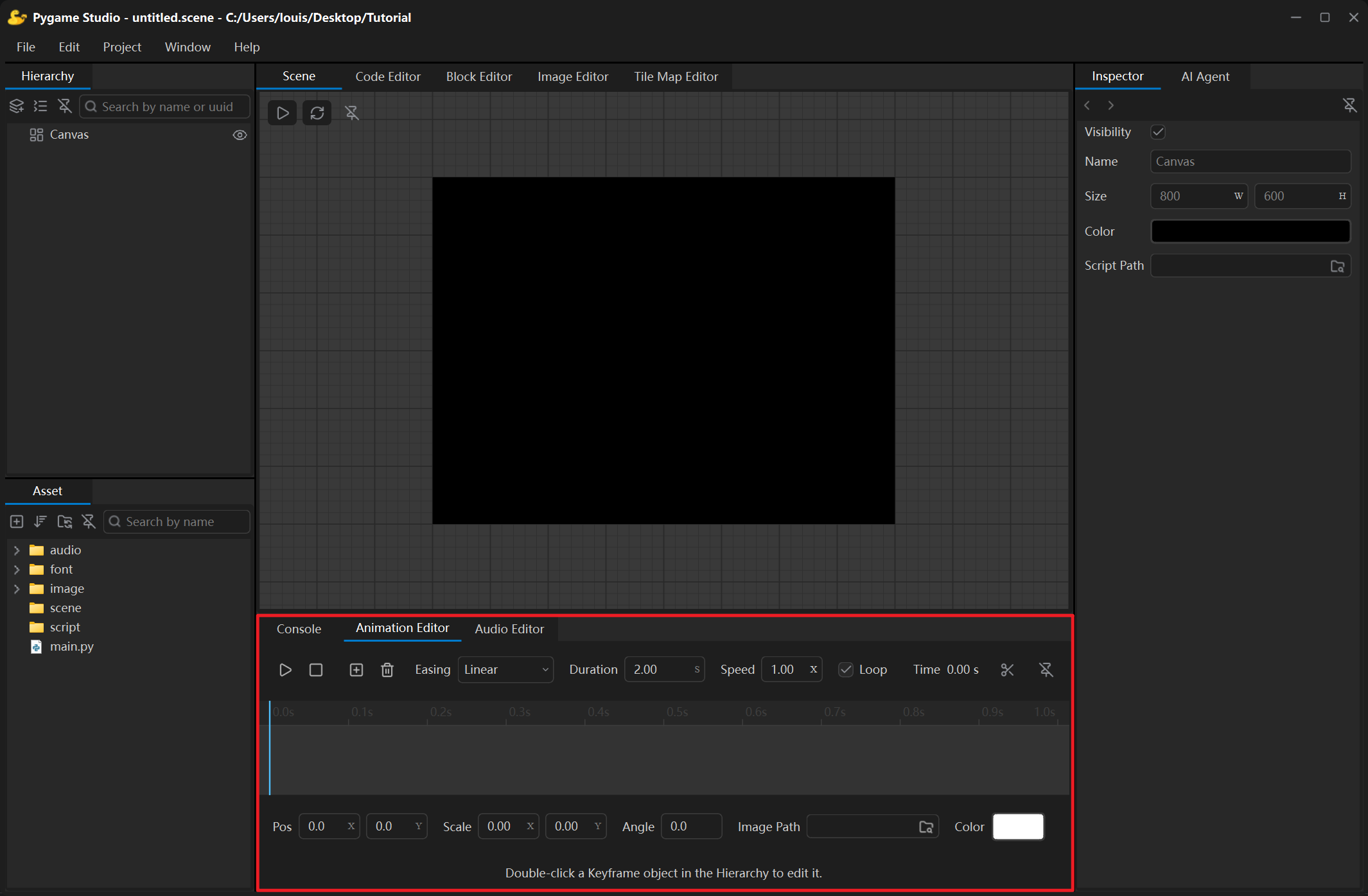
Toolbar
Section titled “Toolbar”| Control | What it does |
|---|---|
| Play / Pause | Plays or pauses the keyframe animation. |
| Stop | Stops the preview; the playhead returns to the start. |
| Add Keyframe | Adds a keyframe at the playhead. |
| Delete Keyframe | Deletes the selected keyframe. |
| Easing | Easing curve of the selected keyframe: Linear, Ease In, Ease Out or Ease In-Out. |
| Duration | Length of the animation. |
| Speed | Playback speed of the animation. |
| Loop | Whether the animation loops; when unticked it plays once. |
| Detach | Floats the editor in its own window; click again or close the window to dock it back. |
Timeline and keyframes
Section titled “Timeline and keyframes”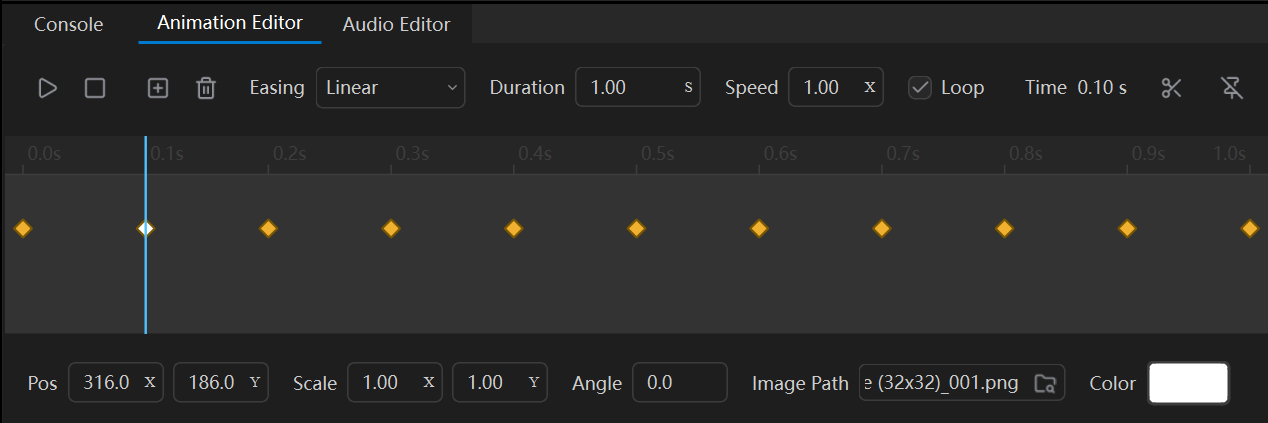
- Besides the Add Keyframe button on the toolbar, right-clicking empty space on the timeline opens a menu with New Keyframe — clicking it adds a keyframe at the playhead. Right-clicking a selected keyframe also shows Delete Keyframe, which removes the selected frame.
- Clicking a keyframe selects it: the playhead jumps to that keyframe and the Scene view shows the animated object at that frame’s state.
- The labelled row under the timeline edits the selected keyframe: Pos (
X,Y), Scale, Angle, Image Path and Color. Note that a keyframe’s state can only be changed through these controls. - The ruler text at the top right of the timeline is the animation’s playback duration.
- Every edit can be undone and redone (Ctrl+Z / Ctrl+Y).
Sprite sheet slicer
Section titled “Sprite sheet slicer”The scissors button on the right side of the Animation Editor opens the sprite sheet slicer dialog; it cuts one whole sheet image into a set of frame files on a fixed grid:
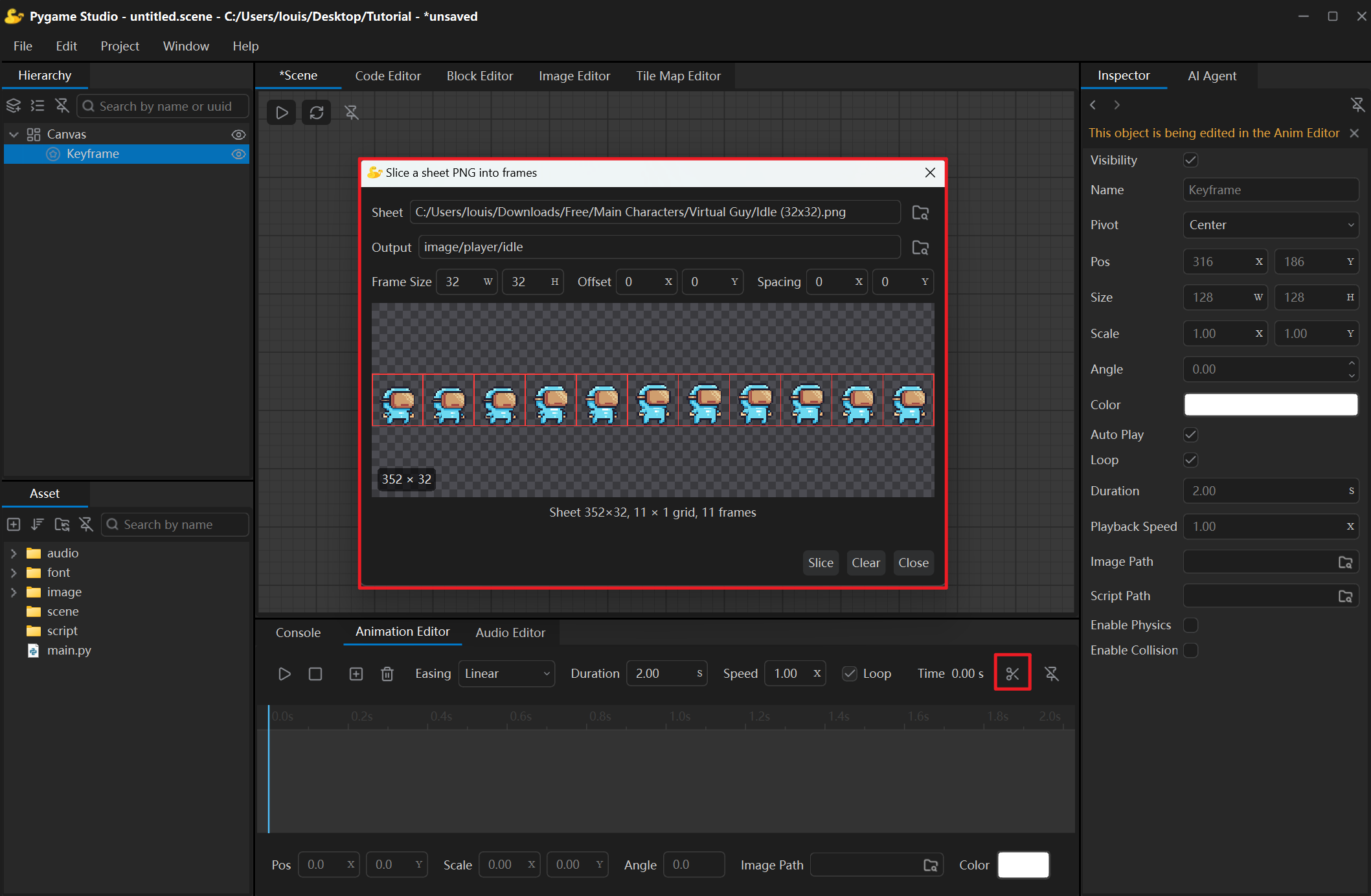
- Pick the source image and set the frame width / height (use offset and spacing to trim the empty edges);
- The preview cuts the source image on a red grid; the text below shows “columns × rows = frames” live;
- Click Slice and the frame files are written to the output folder as
name_000.png,name_001.png, …; - Drag the finished folder onto the Animation Editor’s timeline and it becomes one keyframe per image — press Play to see the animation.