Asset
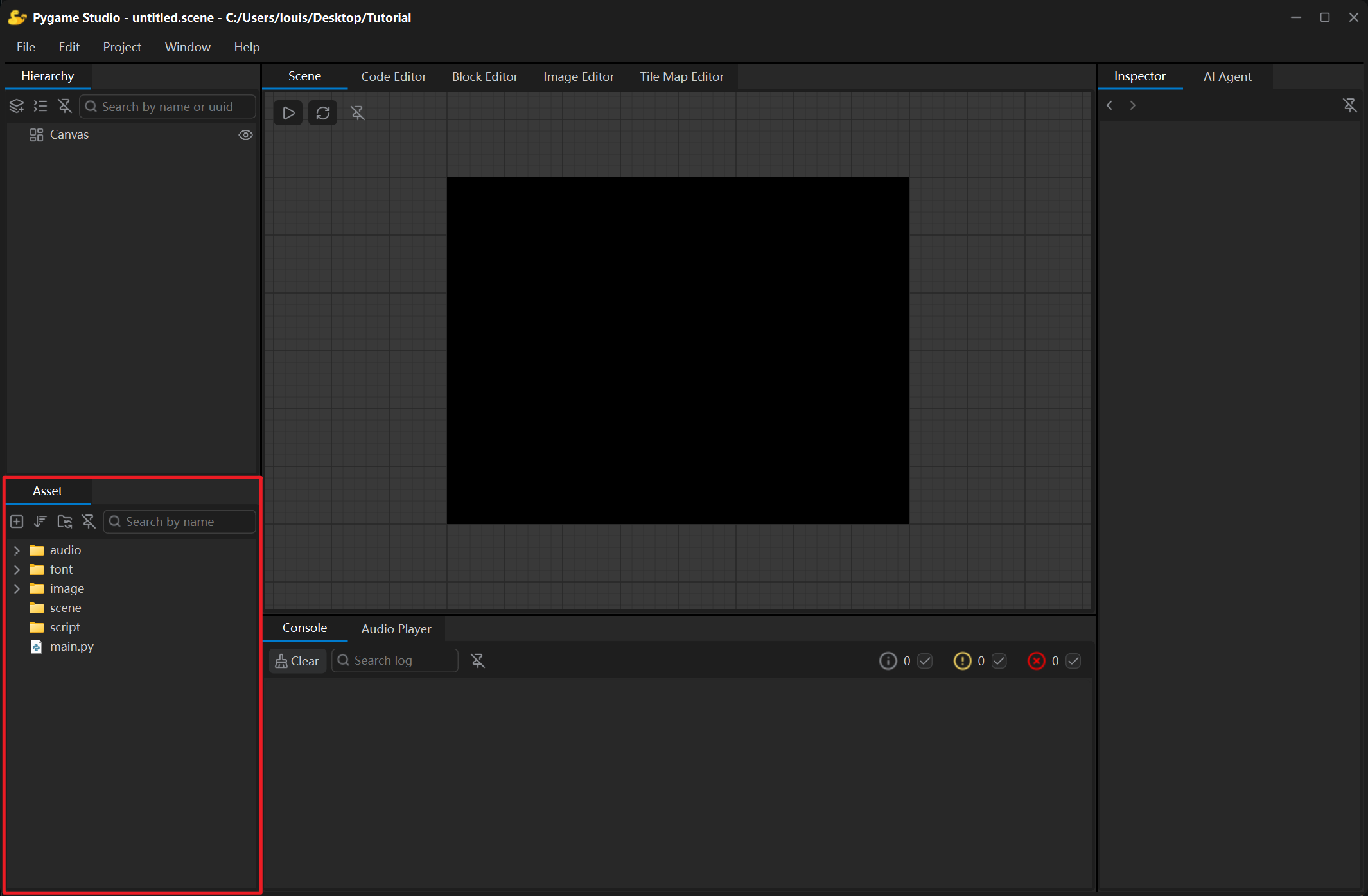
The Asset panel in the lower-left corner is the file manager of the project. Everything the game needs to load — images, fonts, audio, scripts and scenes — lives here.
Project structure
Section titled “Project structure”A new project is created with this structure:
MyGame/├─ audio/ sounds and music├─ font/ .ttf fonts├─ image/ images├─ scene/ .scene scene files├─ script/ Python scripts├─ main.py the entry point of the game└─ project.pygs project configuration (not shown in the Asset panel)Toolbar
Section titled “Toolbar”| Control | What it does |
|---|---|
| Add | Creates a Folder, Script, Scene or Text File. |
| Sort | Orders folders and files by name, type, size or time, ascending or descending. |
| Refresh | Re-reads the project folder from disk. |
| Search | Filters by file name. |
| Detach | Floats the Asset panel in its own window; click the button again or close the window to dock it back. |
Opening files
Section titled “Opening files”| File | Opens in |
|---|---|
.py script | the Code Editor |
.scene | loads the scene into the Scene panel |
| image | the built-in Image Editor |
| audio | the Audio Player |
other text files (.json, .txt, .md, …) | the Code Editor |
| anything else | the application your system uses for that file type |
Importing and moving files
Section titled “Importing and moving files”- Drag files or folders from outside the editor into the Asset panel to copy them into the project — the easiest way to bring in artwork, sounds or a whole asset pack. If a file with the same name exists, you are asked whether to overwrite it.
- Drag files inside the panel to move them between folders.
- Duplicate copies a file; Delete asks for confirmation first, and deleted files go to the recycle bin.
- Copy Path / Name / UUID puts the identifier of the selected file on the clipboard.