
Add a Script
Objects added to the scene just sit there until a script brings them to life. This guide attaches a script to a rectangle and makes it grow and shrink — handwritten in step 4, and built with the Block Editor in step 5.
1. Create the object
Section titled “1. Create the object”Follow the steps in Create an Object to add a Rect to the scene and select it. The Inspector shows its properties.
2. Create the script file
Section titled “2. Create the script file”In the Asset panel, right-click the script folder that should hold the script and choose Add → Script:
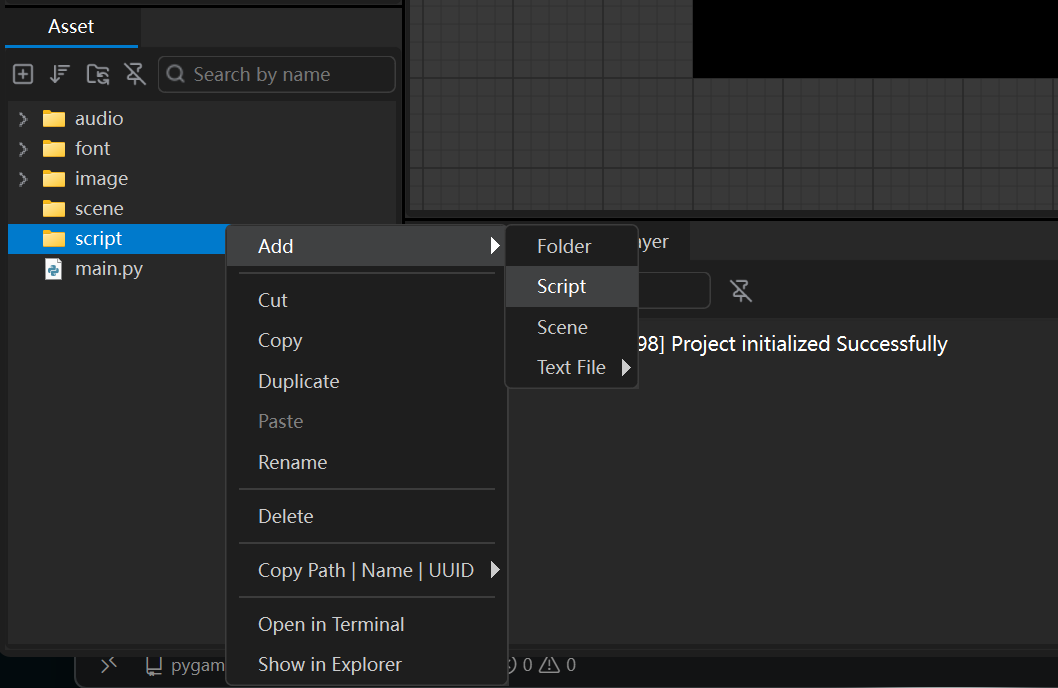
The script is named new.py by default; rename it to big_small.py. Double-clicking it opens the Code Editor.
3. Attach the script to the rectangle
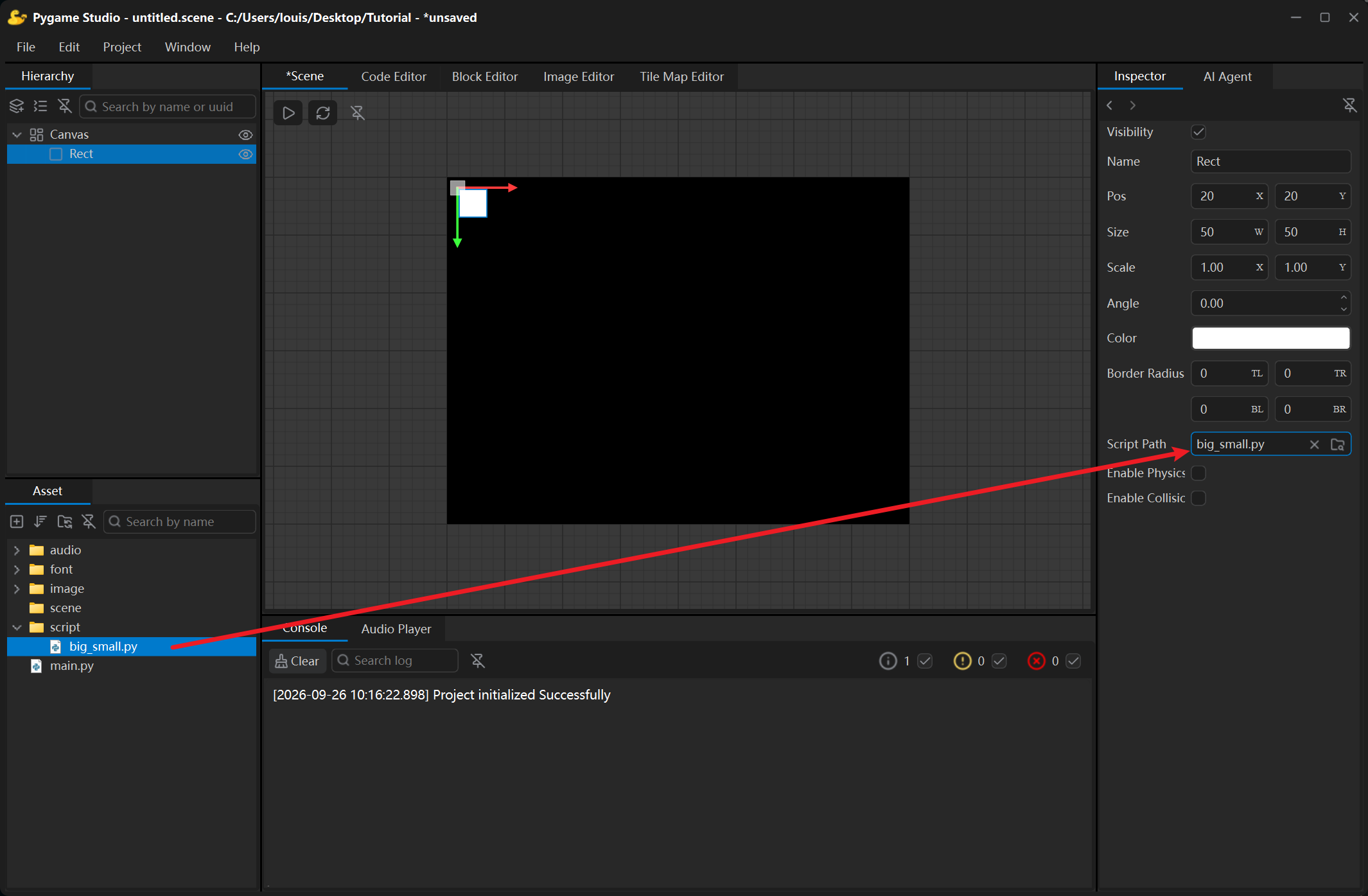
Section titled “3. Attach the script to the rectangle”Select the rectangle in the scene and look at the Script Path row of the Inspector: click the browse icon and pick the file you just created (dropping the .py file onto the row works as well). The file name then appears in the row, and the × button next to it detaches the script again.
4. Write the grow / shrink logic
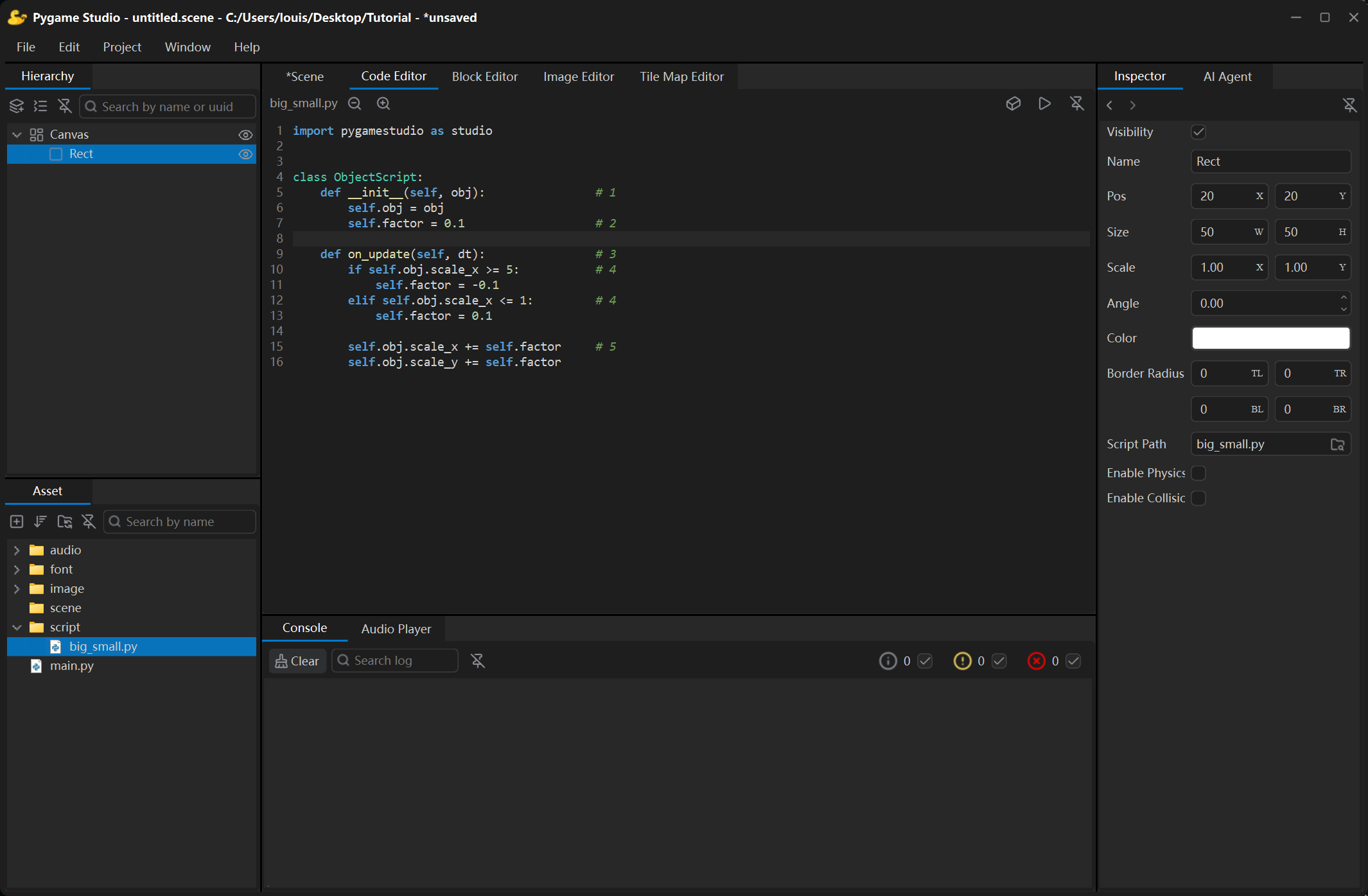
Section titled “4. Write the grow / shrink logic”Double-click the script file to open it in the Code Editor and replace the body of the template with this code:
import pygamestudio as studio

class ObjectScript:    def __init__(self, obj):                # 1        self.obj = obj        self.factor = 0.1                   # 2
    def on_update(self, dt):                # 3        if self.obj.scale_x >= 5:           # 4            self.factor = -0.1        elif self.obj.scale_x <= 1:         # 4            self.factor = 0.1
        self.obj.scale_x += self.factor     # 5        self.obj.scale_y += self.factor
What the pieces do:
__init__(self, obj)— the engine hands the object to the script; keeping it onself.objlets every callback reach it.self.factor— the scale factor: how much the object grows (or shrinks) each time.on_update(self, dt)— called once per frame while the game runs;dtis that frame’s duration in seconds.if / else— when the object’s horizontal scalescale_xis greater or equal to5, setself.factorto-0.1to shrink the object; when it is less or equal to1, setself.factorto0.1to grow it.self.obj.scale_x += self.factor— addsself.factorto the object’sscale_xandscale_y: at-0.1the object shrinks, at0.1it grows.
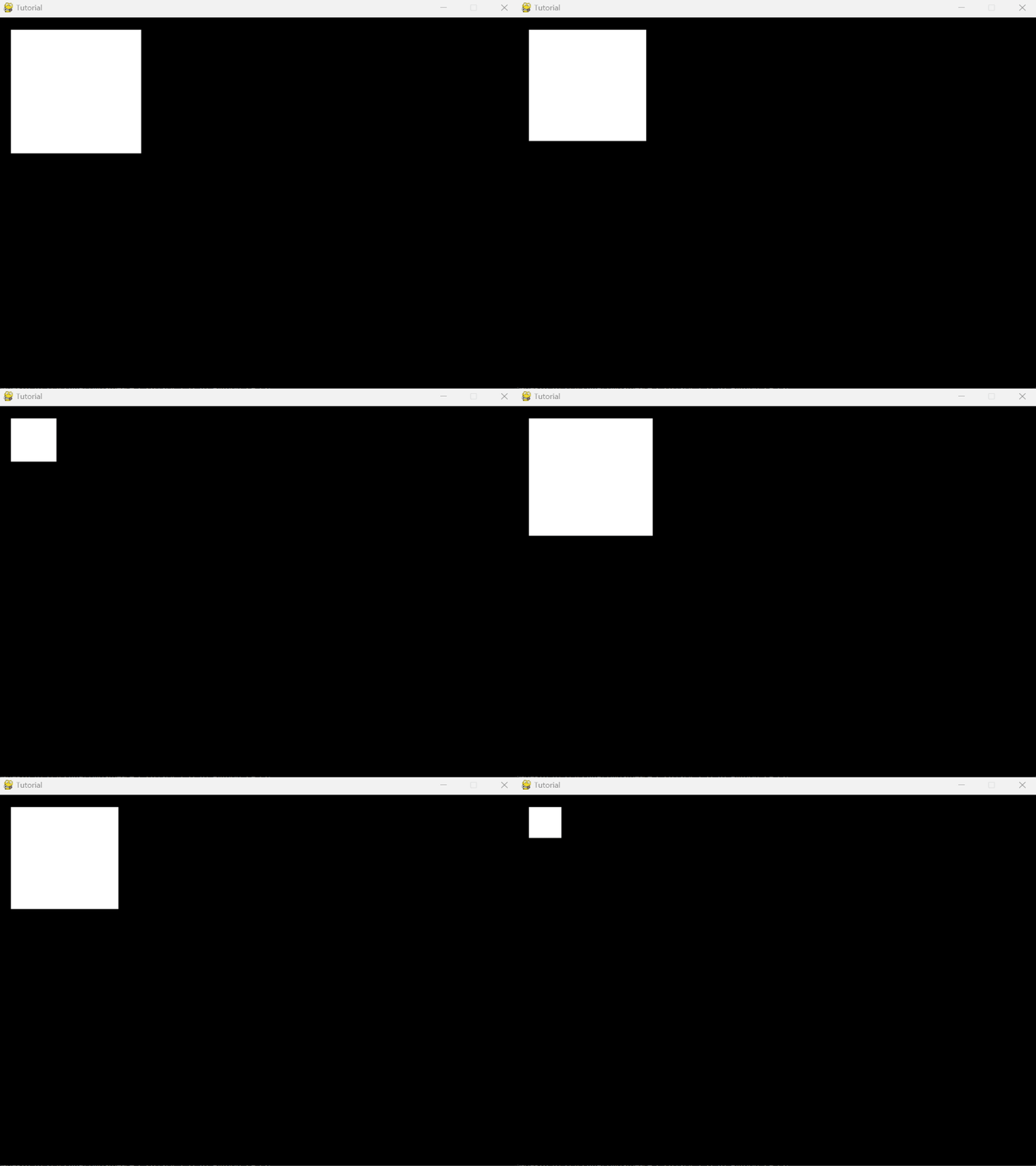
Click Run button in the Code Editor toolbar (or press Ctrl + R) and the rectangle starts growing and shrinking.
5. The same effect with the Block Editor
Section titled “5. The same effect with the Block Editor”The same logic can be snapped together instead of typed. Add another script (for example big_small_blocks.py), drag it onto the rectangle’s Script Path row to replace the first one, then right-click it in the Asset panel and choose Open in Block Editor.
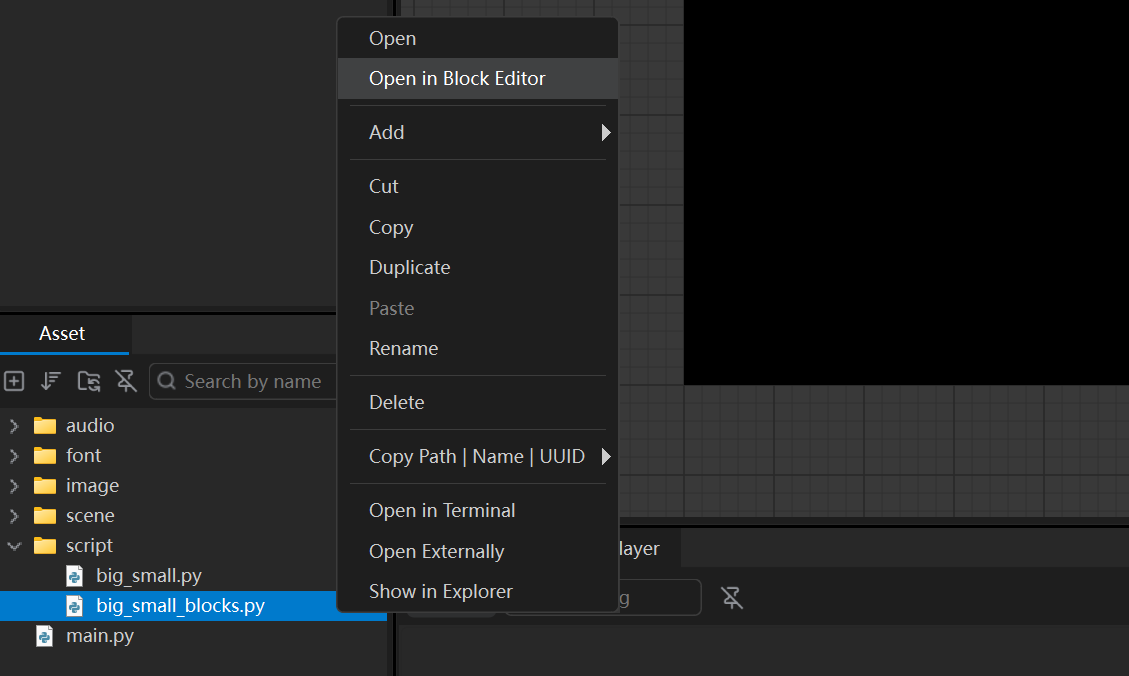
With the Block Editor open, follow these steps in order:
- Open the Variables tab and create a Number variable named
factorwith the initial value0.1. - Open the Events tab, expand the Rect group and drag When each frame updates (dt) onto the canvas.
- Open the Control tab, drag If onto the canvas and snap it below the event block; pick
scale xas the property,greater or equalas the comparison and set the value to5. - Open the Actions tab, drag Set property to value inside the If block; pick
factoras the property and set the value to-0.1. - Open the Control tab, drag else if onto the canvas and snap it below the If block; pick
scale xas the property,less or equalas the comparison and set the value to1. - Open the Actions tab, drag Set property to value inside the else if block; pick
factoras the property and set the value to0.1. - Open the Actions tab, drag 2 Change property by blocks onto the canvas and snap them below the chain; pick
scale xandscale yas their properties and set their value tofactor.
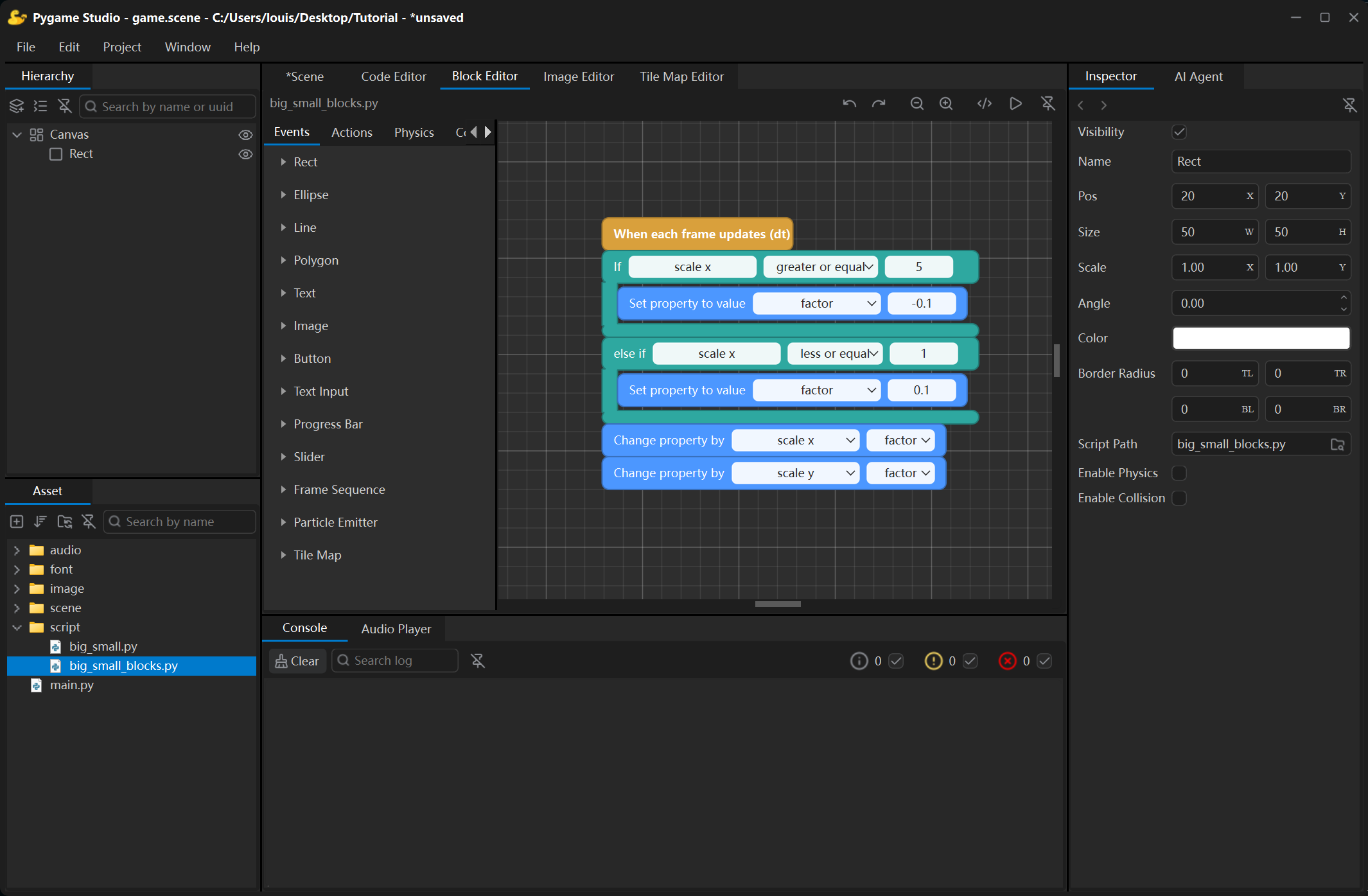
Now make sure that the big_small_blocks.py script is attached to the rectangle object. Click Run button in the Block Editor toolbar (or press Ctrl + R) and the rectangle grows and shrinks just like the code version.