Hierarchy
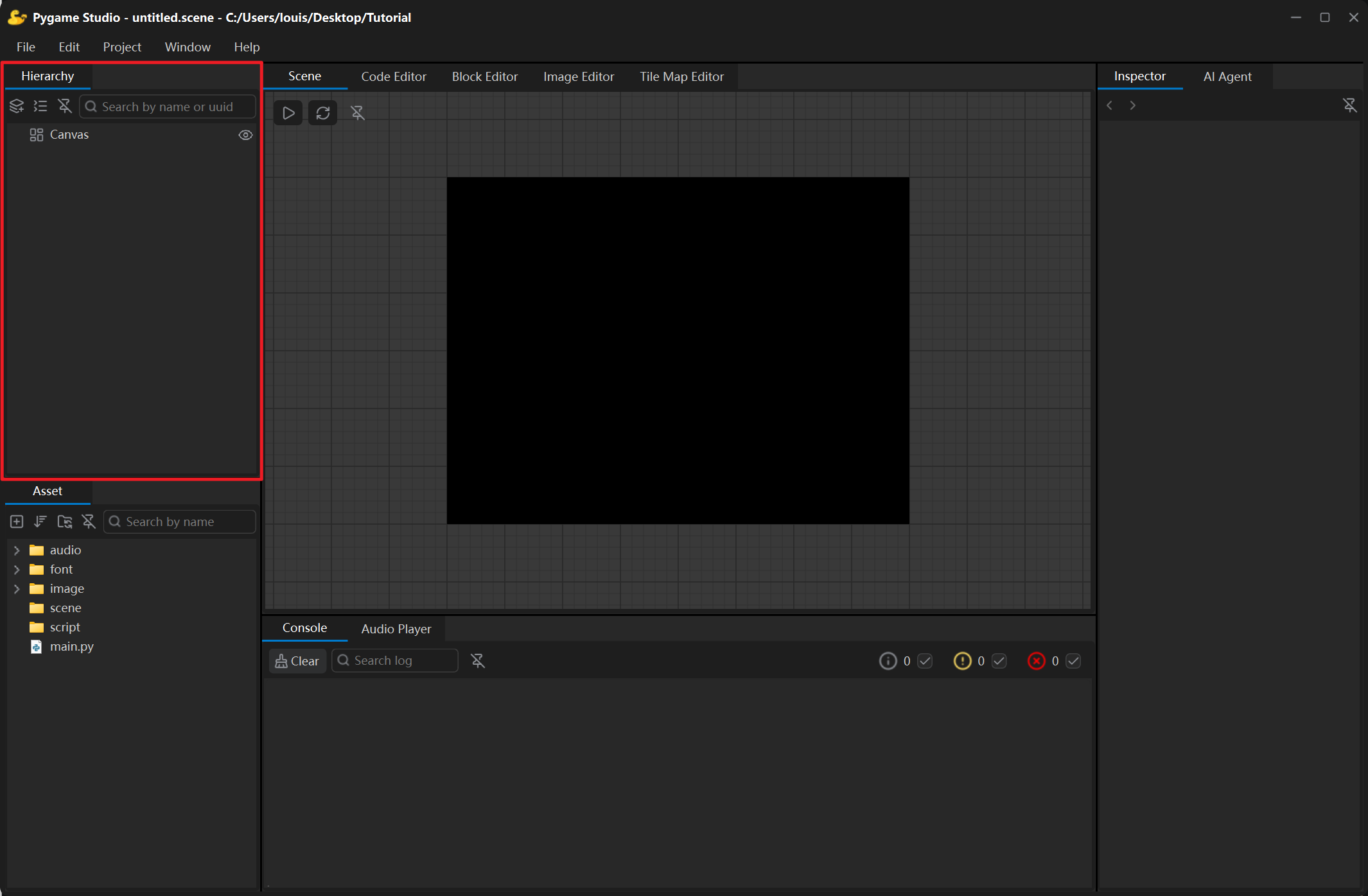
The Hierarchy panel in the upper-left corner lists every object of the current scene as a tree, and it is where objects are created, selected, renamed, re-parented and deleted.
The object tree
Section titled “The object tree”The root of the tree is the Canvas — the scene itself — and every other object is a child (or grandchild) of the Canvas:
- hiding a parent hides its children as well;
- the position of a child is relative to its parent, so moving a parent moves its children with it;
- the order in the tree is the drawing order: objects further down (deeper in the tree) are drawn on top, which means a deeper object covers a shallower one.
Toolbar
Section titled “Toolbar”| Control | What it does |
|---|---|
| Add | Opens the object type menu: shapes, UI, effects, animation, world. |
| Expand / Collapse all | Opens or closes the selected tree branches at once. |
| Search | Searches by object name or UUID. |
| Detach | Floats the panel in its own window; click the button again or close the window to dock it back. |
Common actions
Section titled “Common actions”- Add an object — click the Add button, or right-click in the tree and pick an entry from the Add menu. The new object is created under the selected object; select Canvas to add it to the scene directly.
- Select — click an object; Ctrl + click selects several. The Inspector and the Scene window follow the selection.
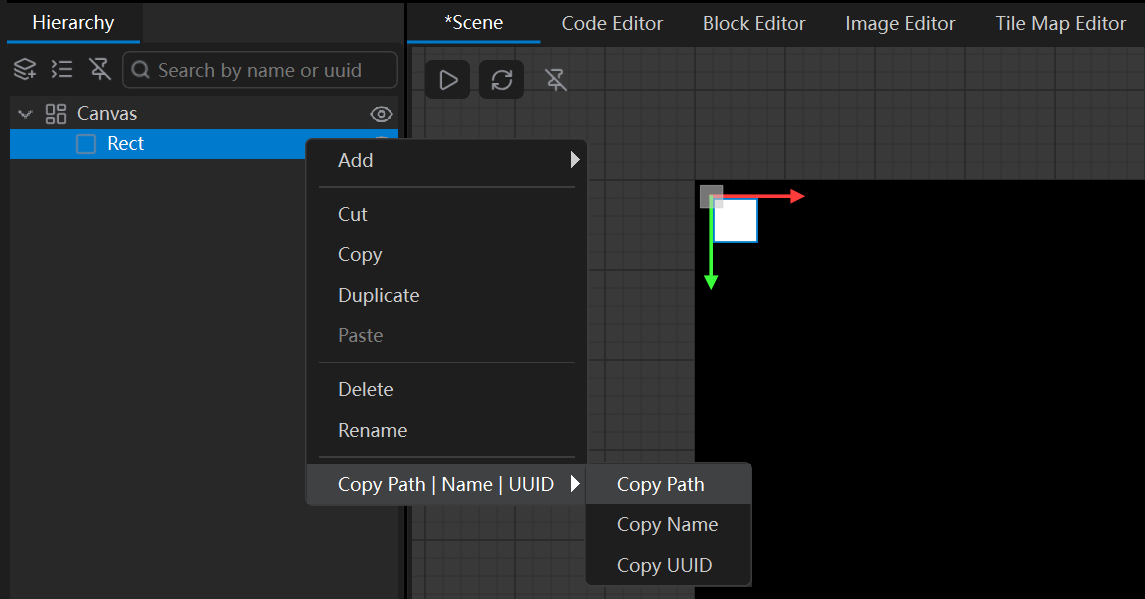
- Rename — double-click the name, right-click → Rename, or edit the Name row in the Inspector.
- Re-parent — drag an object onto another object to move it into that object’s branch of the tree.
- Delete — select the object and press Delete, or right-click → Delete.
- Cut / Copy / Paste / Duplicate — from the context menu, or with Ctrl + X, Ctrl + C, Ctrl + V.
Copy Path / Name / UUID
Section titled “Copy Path / Name / UUID”Right-click an object and open the Copy Path | Name | UUID submenu to put an identifier of the object on the clipboard. Scripts need them to look an object up, for example get_object_by_path('Canvas/Player') or get_object_by_uuid('<the UUID goes here>').