
Tile Map Editor
The Tile Map Editor paints the tiles of a Tile Map object. Open it by double-clicking a Tile Map object in the Hierarchy; the editor always follows the selected Tile Map object.
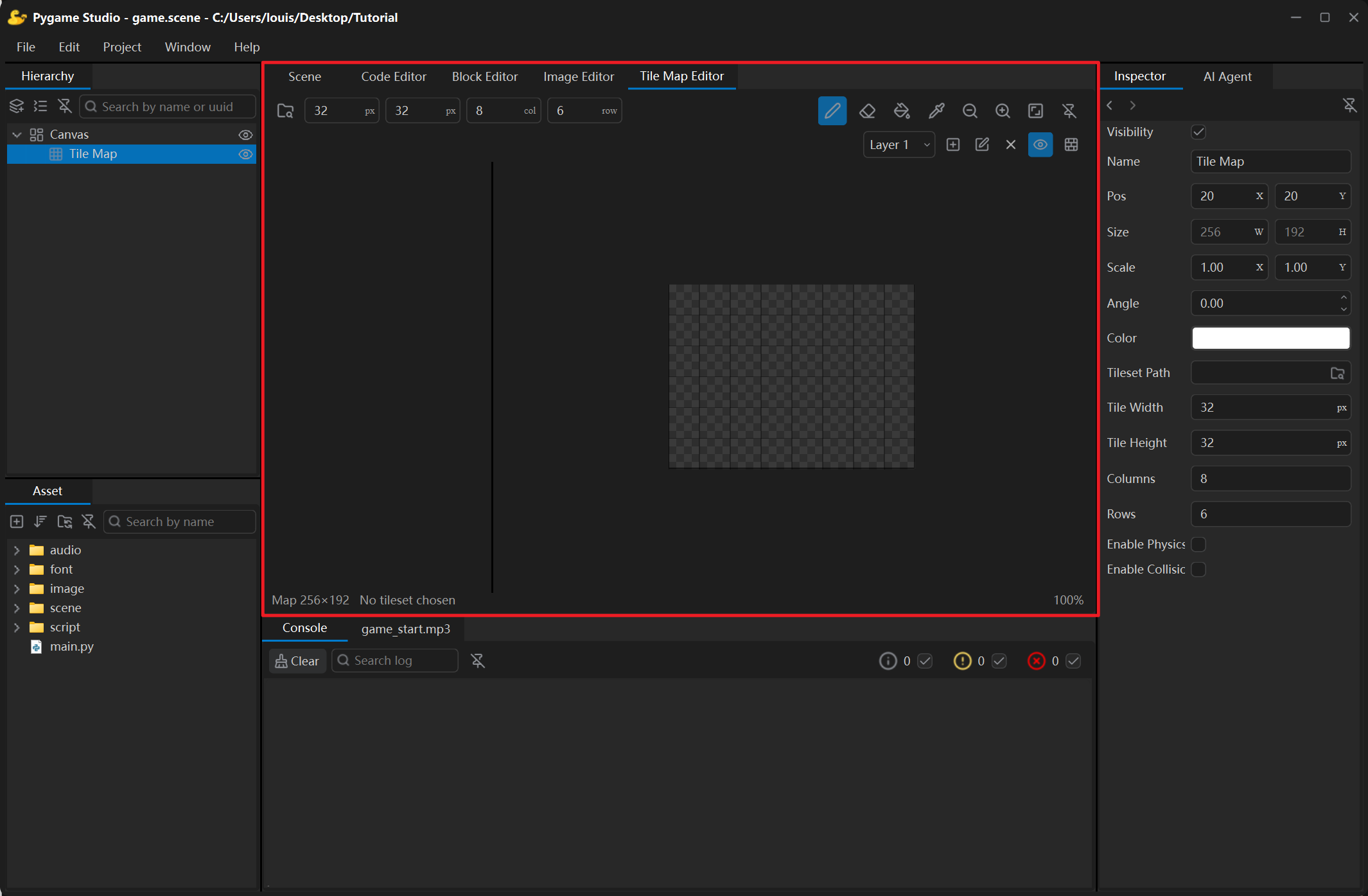
Toolbar
Section titled “Toolbar”| Control | What it does |
|---|---|
| Tileset | Chooses the image that holds the tiles (click the browse icon to open the file dialog). |
| Tile Width / Tile Height | Size of a single cell in the tileset image. |
| Columns / Rows | Grid size of the map (number of cells). |
| Paint / Erase / Fill / Pick Tile | The four painting tools. |
| Zoom Out / Zoom In / Fit | Scales the canvas; Fit shows the whole map. |
| Detach | Floats the panel in its own window; click the button again or close the window to dock it back. |
The status line under the toolbar shows the map size and how many tiles the tileset offers; if it says the tileset cannot fit whole tiles, the tile size does not match the cell size of the source image.
Layers
Section titled “Layers”The layer bar under the toolbar manages the map layers:
| Control | What it does |
|---|---|
| Layer list | Chooses the layer that is edited and painted on. |
| Add / Delete / Rename | Manages the layers; the map always keeps at least one. |
| Eye icon | Shows or hides the current layer. |
| Collision | Marks the layer as a collision layer: every cell with a tile of that layer is solid in the game. |
Layers are drawn from the bottom upwards, so an upper layer covers the one below. Use one layer for the ground, one for decorations, and a separate layer for obstacles the player must not walk through.