Code Editor
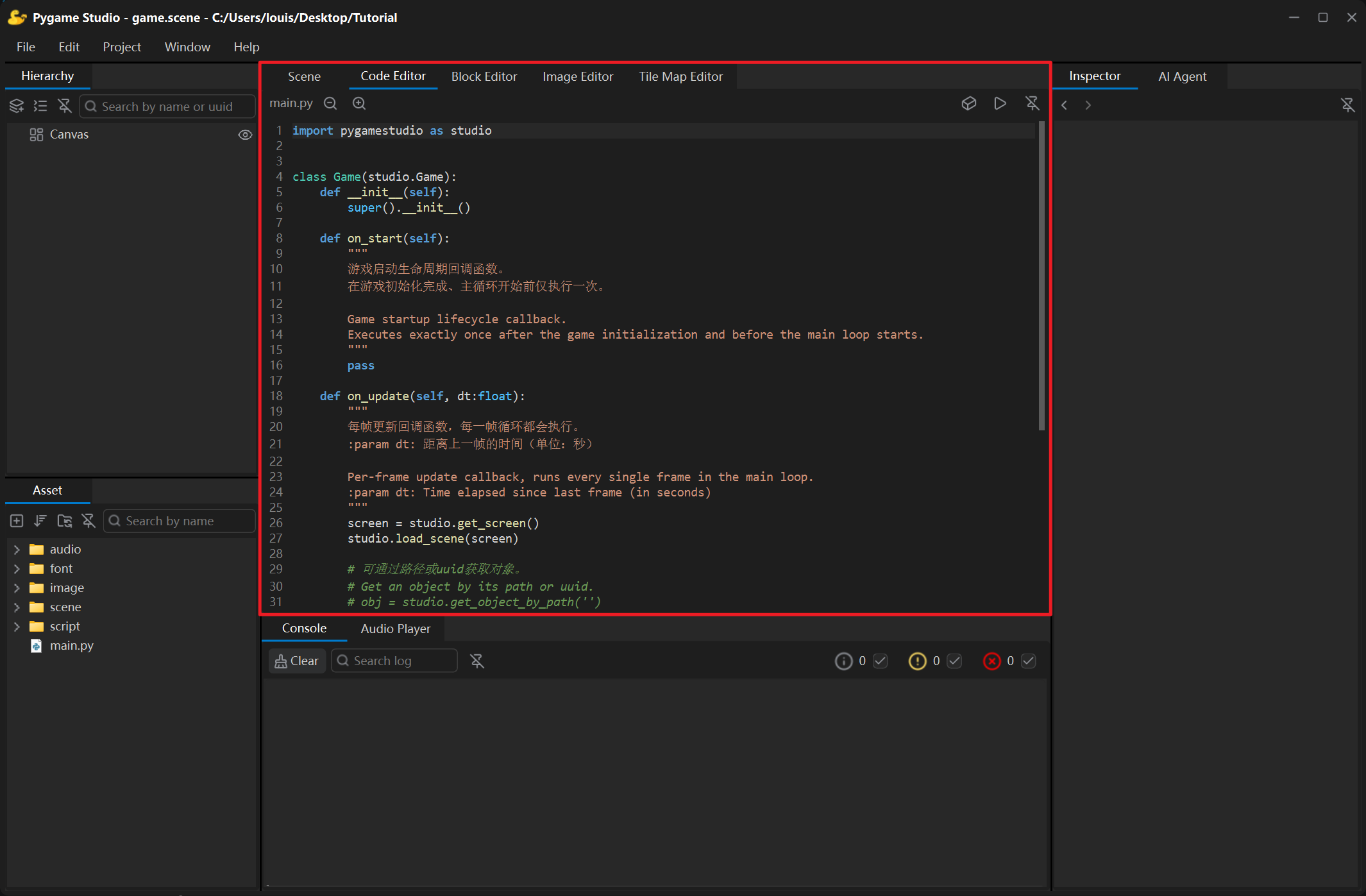
The Code Editor is the editor’s built-in text editor for the project’s scripts and other text files. Open it by double-clicking a .py file in the Asset panel; clicking an error line in the Console jumps into it as well.
Toolbar
Section titled “Toolbar”| Control | What it does |
|---|---|
| File name | The file currently open; an * in front of the name means unsaved changes. |
| Zoom out / Zoom in | Changes the font size. |
| Find | Finds text. |
| Block editor icon | Hands the current file over to the Block Editor. |
| Run | Runs the project — the same as Ctrl + R. |
| Detach | Floats the editor in its own window; click the button again or close the window to dock it back. |
Editing
Section titled “Editing”- Line numbers, syntax highlighting, undo and redo, cut / copy / paste — all of them also available in the right-click menu.
- Tab indents with spaces, Shift + Tab unindents.
- Code auto-completion: a suggestion box appears while you type; pick the entry you need.
- Auto-save: the file is saved 1.5 seconds after you stop typing; Ctrl + S saves immediately.
Keeping in sync
Section titled “Keeping in sync”If the file changes — because it was regenerated by the Block Editor or saved by an external editor — the open editor reloads it automatically, so what you see is always the current content.
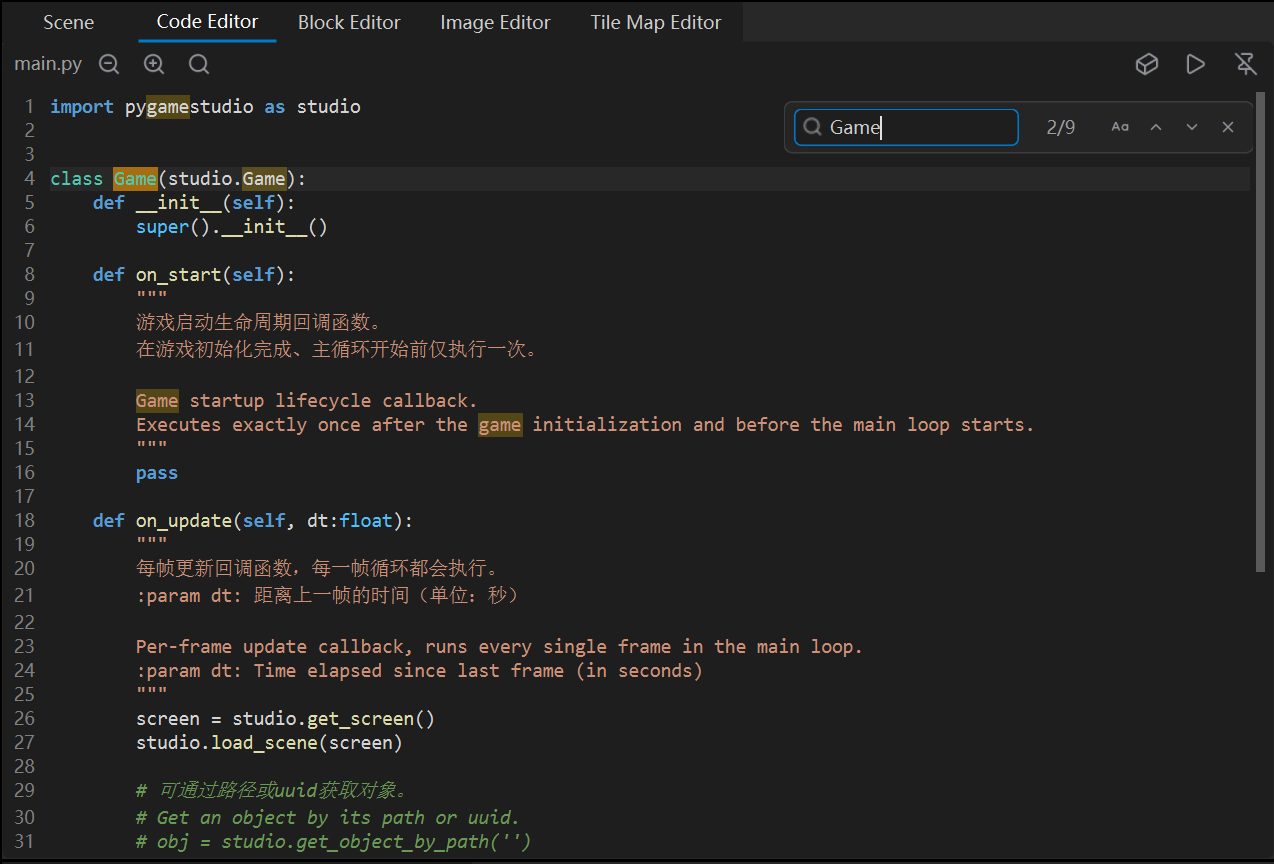
Press Ctrl + F (or click the magnifier button on the left of the toolbar) to open the find bar at the top right: