Image Editor
The Image Editor is the editor’s built-in drawing tool for the project’s images. Open it by double-clicking an image in the Asset panel; a brand-new image can be created with New inside the Image Editor.
Toolbar
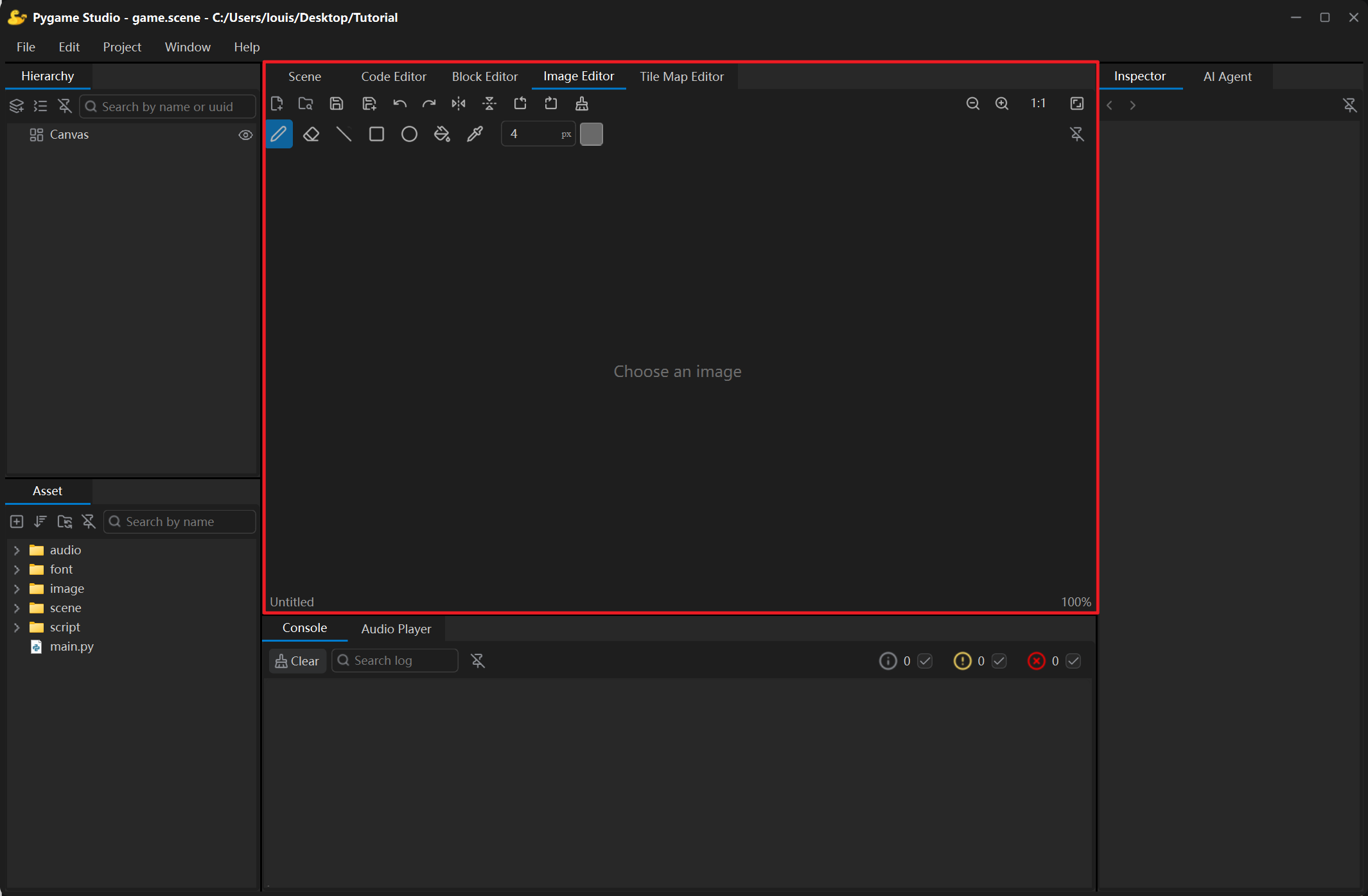
Section titled “Toolbar”The first row holds file, history and transform actions:
| Control | What it does |
|---|---|
| New | Creates a fully transparent image; a dialog asks for width and height (default 800 × 600 px, up to 16384). |
| Open | Chooses an image file from your computer (images inside the project are usually opened by double-clicking them in the Asset panel). |
| Save | Saves back to the current file — the same as Ctrl + S; a new image asks for a location first. |
| Save As | Saves to a new file; PNG, JPEG, BMP, WebP, GIF and TIFF are available, and .png is used when no suffix is typed. |
| Undo / Redo | Steps back and forward through the edit history (Ctrl + Z / Ctrl + Y, Ctrl + Shift + Z also works); up to 30 steps. |
| Flip Horizontal / Flip Vertical | Mirrors the whole image. |
| Rotate 90° CCW / CW | Turns the whole image a quarter turn. |
| Clear | Clears the current image. |
The second row holds the drawing tools, the brush size and the colour swatch:
| Control | What it does |
|---|---|
| Pencil | Freehand drawing with the brush size. |
| Eraser | Erases what you painted to transparency. |
| Line / Rectangle / Ellipse | Draws the given shape. |
| Fill | Fills with the current colour. |
| Colour Picker | Takes the colour of a clicked pixel as the current colour. |
| Brush Size | Pen width (1–512 px); it is also the line thickness of every drawing tool. |
| Colour swatch | The pencil, the shapes and the fill all use this colour. |
While no image is open, the canvas shows the hint Choose an image and the drawing controls are disabled — but New and Open stay available.
Status bar
Section titled “Status bar”Under the canvas: the file name on the left — an * in front of it means unsaved changes — and the image size (W × H px) plus the zoom percentage on the right.