Inspector
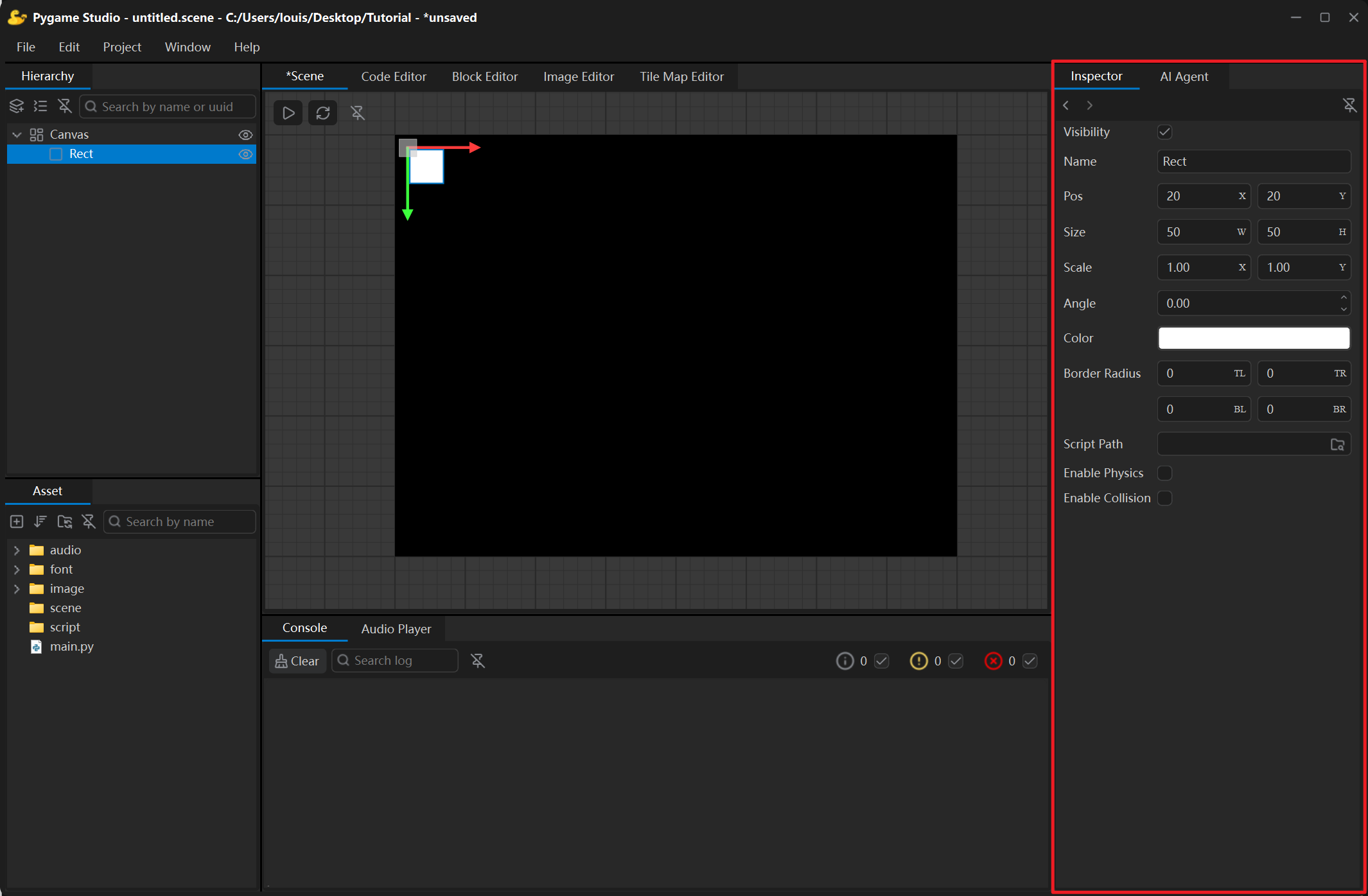
The Inspector on the right side of the window shows the properties of the selected object.
Toolbar
Section titled “Toolbar”| Control | What it does |
|---|---|
| < / > | Steps back and forward through the recently selected objects, without touching the scene. |
| Detach | Floats the panel in its own window; click the button again or close the window to dock it back. |
With nothing selected the Inspector shows no content. Select an object in the Hierarchy or click one in the Scene to show its properties.
Common properties
Section titled “Common properties”| Row | Meaning |
|---|---|
| Visibility | Shows or hides the object. Hidden objects are not drawn and cannot be clicked. |
| Pivot | the centre of an object’s scaling and rotation; it defaults to the centre. |
| Name | The name shown in the Hierarchy. |
| Pos | X / Y position, relative to the parent object. |
| Size | Width and height in pixels. |
| Scale | Stretches the object without changing its size values. |
| Angle | Rotation angle. |
| Color | Fill colour with an alpha channel — click the swatch to pick a colour and its transparency. |
Object types add extra rows of their own:
| Object | Extra rows |
|---|---|
| Rect | The four corner radii. |
| Polygon | The polygon vertices. |
| Line | Start point, end point, thickness. |
| Text | Text content, font size, font path, bold, italic, underline, strikethrough, horizontal / vertical alignment. |
| Image | Image path — click the browse button to choose an image, or drop an image file onto the row. |
| Button / Text Input / Progress Bar / Slider | caption, placeholder, progress, value, range, slider handle size, and so on. |
| Particle Emitter / Frame Sequence / Tile Map | particle parameters, frame folder and frame rate, tileset and grid size. |
Script Path
Section titled “Script Path”Attach a behaviour script to the object: click the browse button in the Script Path row and choose a .py file of the project; dropping the file onto the row works the same way. The × button removes the script again.
Collision
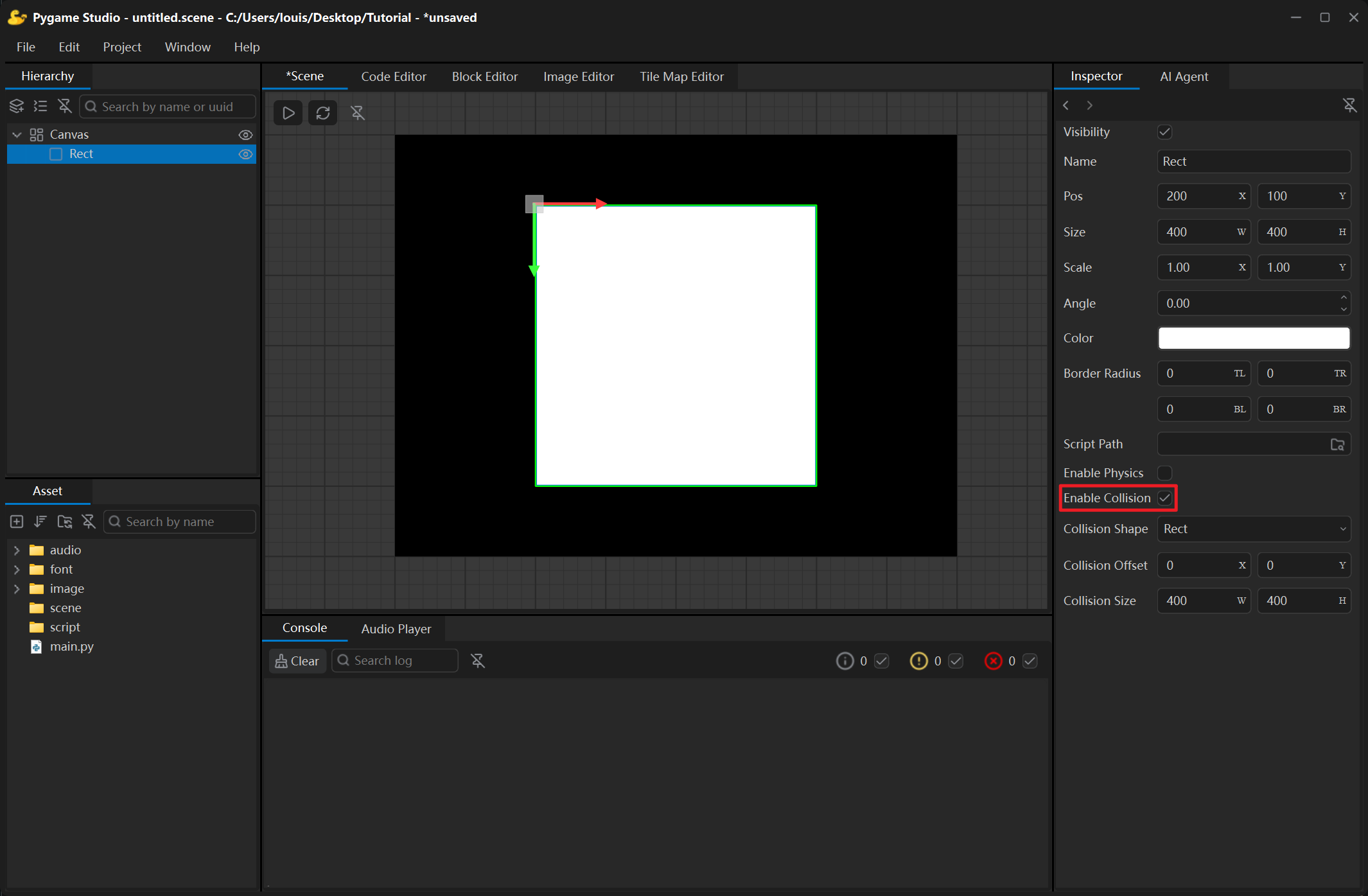
Section titled “Collision”Every object except the Canvas root has an Enable Collision property:
| Row | Meaning |
|---|---|
| Enable Collision | Whether collision detection is on for this object. |
| Collision Shape | Bounding box, rect, ellipse, polygon. |
| Collision Offset / Collision Size | Offset and size of the collision shape. |
| Collision Points | The vertices of a polygon collision shape. |
The collision shape is previewed with a green outline in the Scene window, and scripts can react to collisions with on_collision_enter(other) and on_collision_exit(other).
Physics
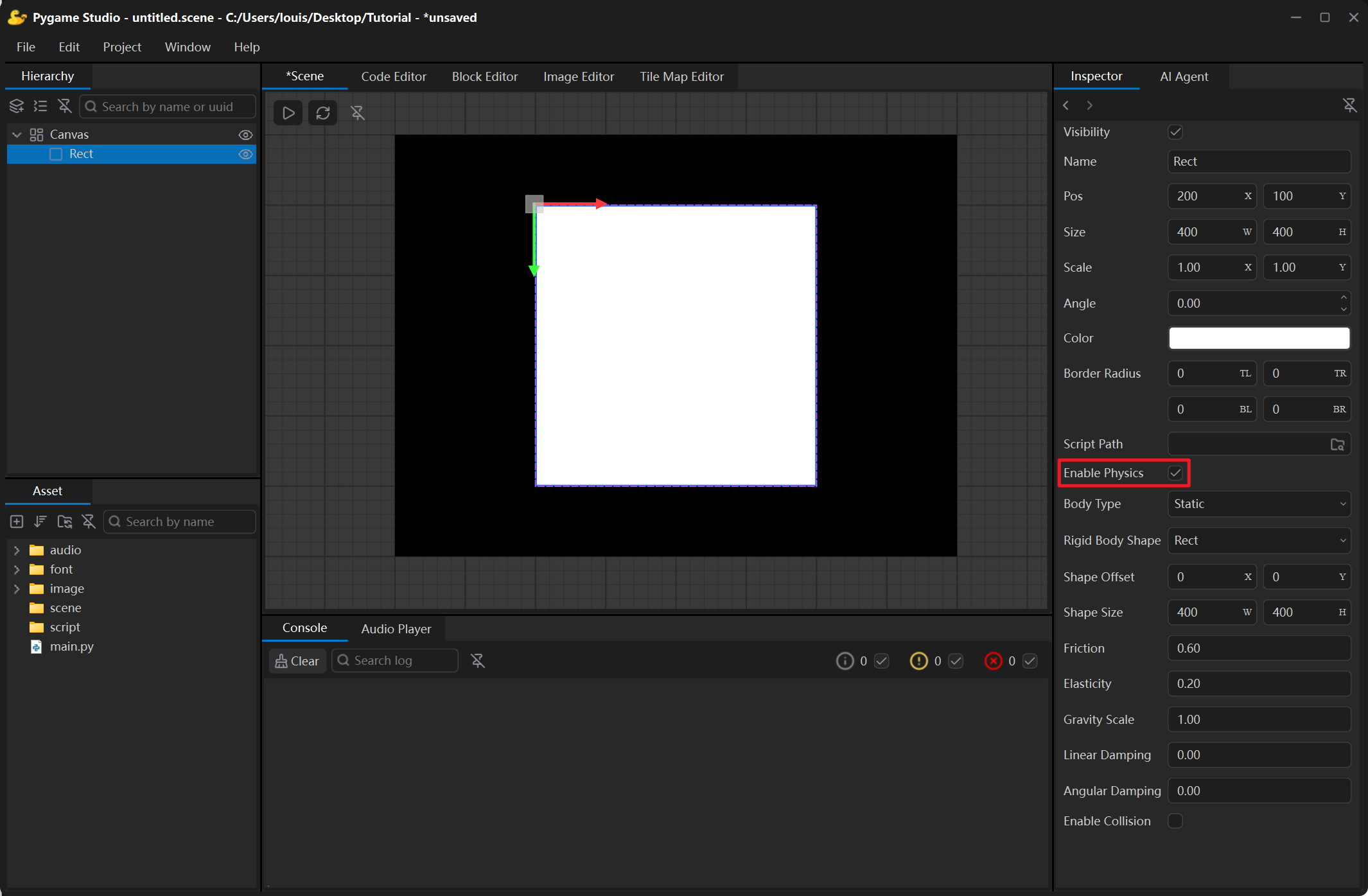
Section titled “Physics”Every object except the Canvas root can also have an Enable Physics property. Once the Enable Physics checkbox is ticked, the object is simulated while the game runs.
| Row | Meaning |
|---|---|
| Enable Physics | Turns the object into a rigid body. |
| Body Type | Dynamic (falls, can be pushed), static (never moves, pushes other bodies), kinematic (moved by a script, carries objects that stand on it). |
| Rigid Body Shape | Bounding box, rect, ellipse, polygon. |
| Shape Offset / Shape Size | Offset and size of the body shape. |
| Shape Points | The vertices of a polygon body shape. |
| Mass | The heavier, the harder to push (dynamic bodies only). |
| Fixed Rotation | Keeps the body upright so that a character does not fall over (dynamic bodies only). |
| Friction | 0 is like ice, 1 is very sticky. |
| Elasticity | 0 stops dead on landing, 1 bounces back fully. |
| Gravity Scale | 0 floats, 1 is normal gravity, a negative value rises upwards. |
| Linear Damping / Angular Damping | How quickly movement and rotation slow down. |
While physics is on, the body shape of the selected object is outlined with purple dashes in the Scene window.