Block Editor
In the Block Editor a script is written by dragging and snapping blocks together — no code has to be typed by hand. Open it from the Asset panel (right-click a script → Open in Block Editor), or with the block icon in the Code Editor toolbar.
Toolbar
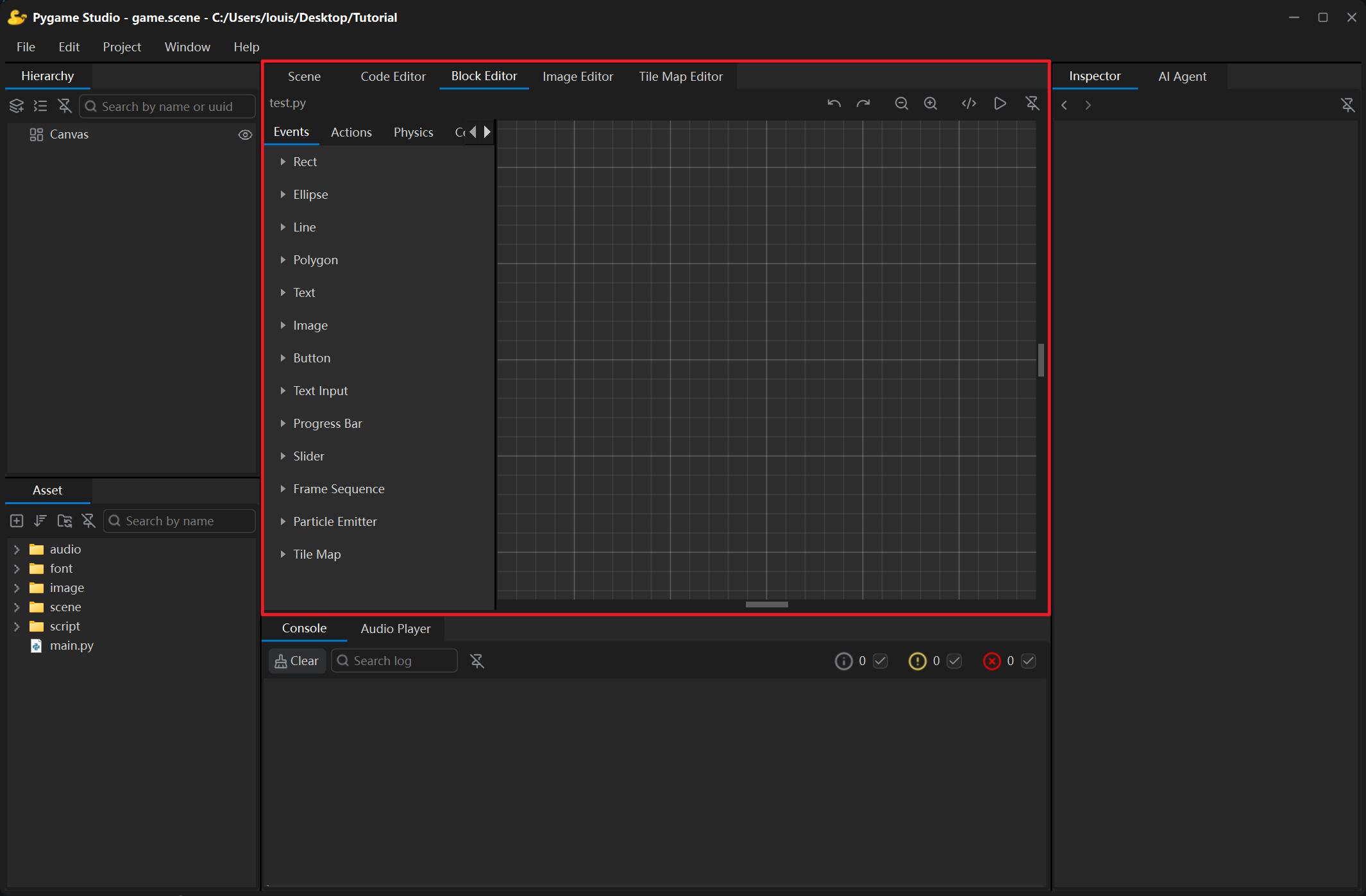
Section titled “Toolbar”| Control | What it does |
|---|---|
| File name | The script being edited. |
| Undo / Redo | Steps back and forward through the changes. |
| Zoom out / Zoom in | Scales the block canvas. |
| Code icon | Hands the file back to the Code Editor. |
| Run | Runs the project — the same as Ctrl + R. |
| Detach | Floats the editor in its own window; click the button again or close the window to dock it back. |
The toolbox
Section titled “The toolbox”The left side lists the available blocks in four categories, plus a Variables tab:
| Category | Contents |
|---|---|
| Events | One block per object event — When the game starts, When each frame updates (dt), When this object is destroyed, When clicked, When a collision starts (other), and so on. |
| Actions | What a script can do: set a property, move, show/hide, change the colour or image, set text, play a sound or music, play an animation, emit particles, set a slider value, print, … |
| Physics | Rigid-body actions: apply force, apply impulse (a jump), set speed, set spin, turn the object’s physics on/off and set the world gravity. |
| Control | Plain Python control flow: If, else if, else, Repeat (times), While (repeat while true), Repeat until, If key is pressed, While key is held, Skip to the next loop step, Break out of the loop, Stop this event. Stack the else if / else blocks under an If to build an if / elif / else chain. The key dropdown covers the whole keyboard — arrows, letters, digits, function keys, modifiers and punctuation keys. |
| Variables | The script’s own variables. When the blocks are saved, every variable is written into the custom script’s __init__ as self.<name> = <value>, and it appears in the property / condition dropdowns of the blocks, so the blocks can read and change it. A variable has one of three types — Number / Text / Boolean — and number variables can also be the amount of Change property by. Click New variable to add one, double-click it to change its name, type and initial value; select it and click Delete variable to delete it. |
Event and action blocks are grouped by object type, because not every object supports the same events and actions; the physics and control blocks work for every object.
Building a script
Section titled “Building a script”- Drag an event block from the toolbox onto the canvas — it becomes the start of a block stack.
- Snap action and control blocks underneath it. Values are edited directly on the block (text fields, numbers, dropdowns).
- Save the file. The editor writes the Python code of the blocks into the script, and the Code Editor shows the code that matches the blocks.
Ctrl + C / Ctrl + V copy and paste blocks, Ctrl + D duplicates the selected blocks in place. When an event block is deleted, the blocks stacked below it are kept as a loose stack on the canvas; the context menu also has Detach the blocks below (the event block stays, its blocks move out) and Delete the whole stack (including everything below).