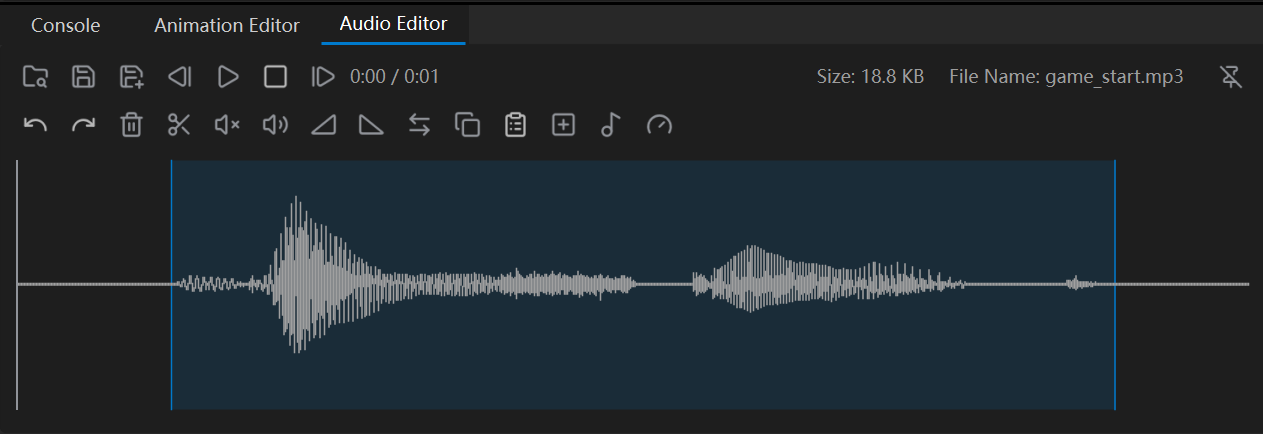
Audio Editor
The Audio Player lets you listen to the project’s audio right inside the editor. Double-click an audio file in the Asset panel and it opens at the bottom of the window.
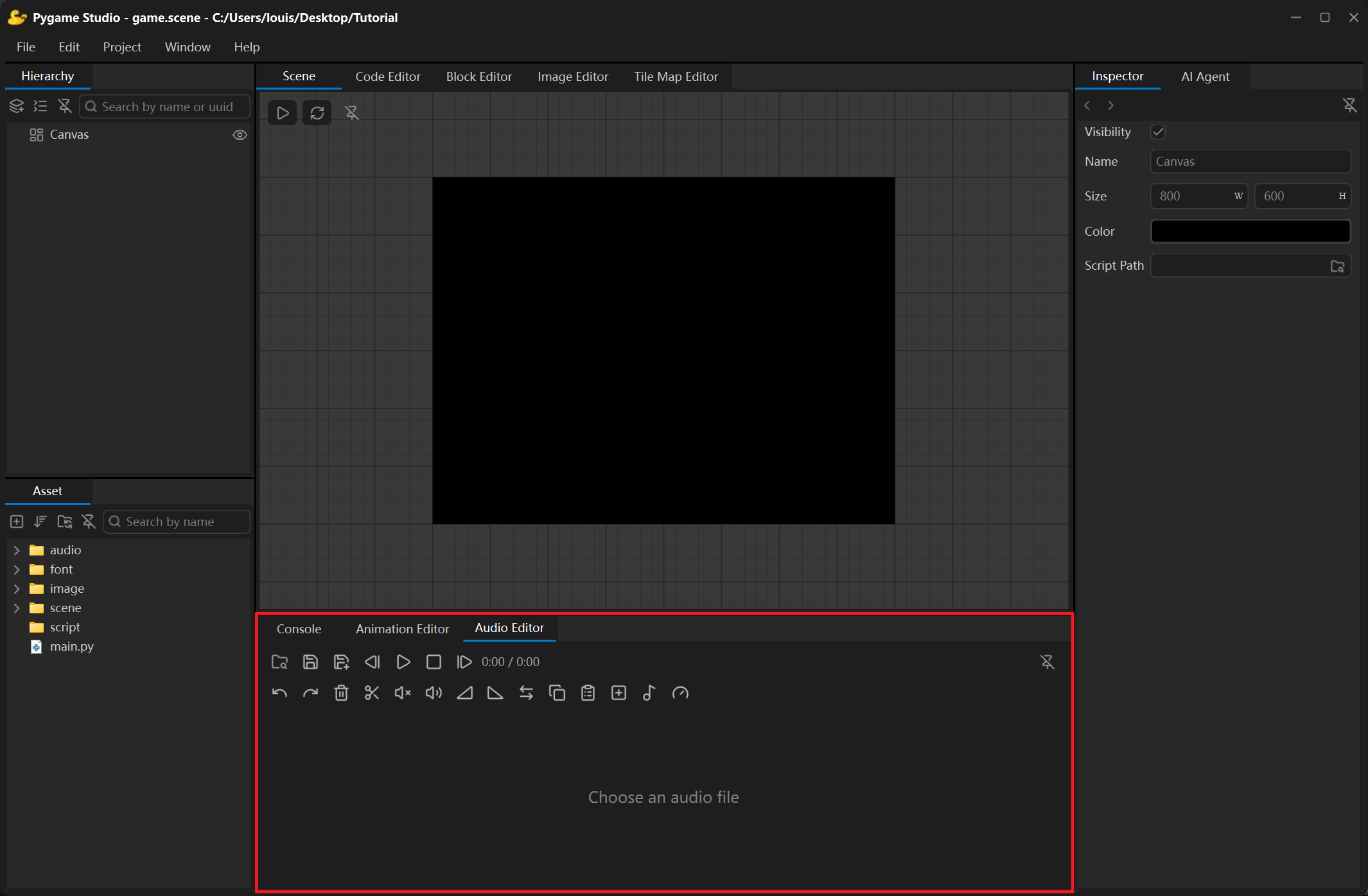
Toolbar
Section titled “Toolbar”| Control | What it does |
|---|---|
| Open Audio File | Opens a file dialog (supports .wav, .mp3, .ogg, .flac, .aif, .aiff, .m4a). Note: .m4a audio files cannot be edited at the moment. |
| Save / Save As | Saves in the original format by default. |
| Previous / Next | Steps through the audio files of the project folder. |
| Play / Pause | Starts or pauses playback; the button icon follows the state. |
| Stop | Stops playback and returns to the beginning. |
| Detach | Floats the player in its own window; click the button again or close the window to dock it back. |
| Delete Selection / Trim | Deletes the selected part, or keeps only the selected part. |
| Mute / Gain | Mutes the selection or adjusts its volume in decibels (positive louder, negative quieter). |
| Fade In / Fade Out | Fades the volume in or out over the selection (the whole file when nothing is selected). |
| Copy / Paste | Copies the selected part; pasting inserts it at the playhead. |
| Append File | Appends other audio files after the current one. |
| Speed / Pitch | Changes the playback speed (pitch unchanged) or the pitch (length unchanged). |
Without a file loaded, the bar under the toolbar shows Choose an audio file; once a file is loaded the waveform is drawn.