Build Window
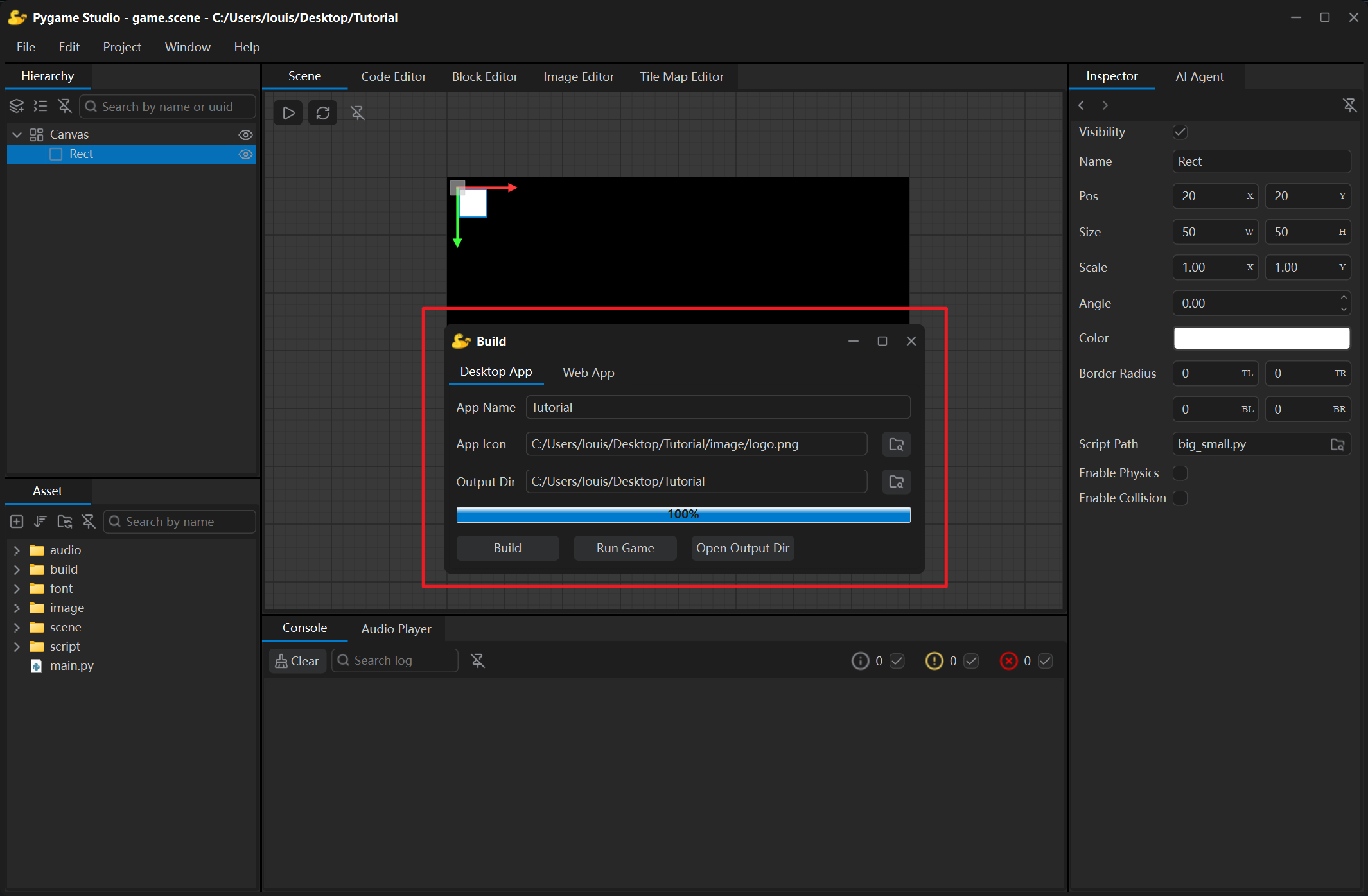
The Build window is opened with the Project → Build menu. It packages the current project into a standalone desktop app or web app: it first prepares a protected copy of the project and hands it to PyInstaller or Pyodide, and the whole run is reported in the Console.
Targets
Section titled “Targets”A tab bar sits at the top of the window; each tab is one build target:
| Tab | What it produces |
|---|---|
| Desktop App | A folder with a program that runs on the current operating system (Windows / macOS / Linux). |
| Web App | A folder (index.html + game.zip) that plays the game right in a browser. |
Packaging a desktop app
Section titled “Packaging a desktop app”
| Field | What it does |
|---|---|
| App Name | Name of the executable and of its folder. Left empty, the project name is used. |
| App Icon | Icon of the application; supports .png, .ico and .icns, and defaults to the project’s image/logo.png. |
| Output Dir | Folder that receives the build; defaults to the project folder, and the result is written to its build/Windows/ subfolder. The final exe can be found in the build/Windows/dist/{App Name} folder. |
| Build | Starts the build; while it runs the button text turns into Stop. |
| Run Game | Available after a successful build: starts the built executable as a separate process, so you can try it right away. |
| Open Output Dir | Opens the output folder in the file manager. |
These settings are saved in the project and filled in again automatically the next time the Build window is opened. Every build clears the cache and temporary files left behind by the previous build first — no manual cleanup needed.
The whole dist/<App Name>/ folder (or a zip of it) can be handed to other players. Besides dist/, the output folder also holds _build/, _protected and a .spec file — all by-products that can be deleted; the next build recreates them automatically.
<Output Dir>/build/<Operating System>/dist/<App Name>/├─ <App Name>.exe the executable└─ _internal the dependency filesPackaging a web app
Section titled “Packaging a web app”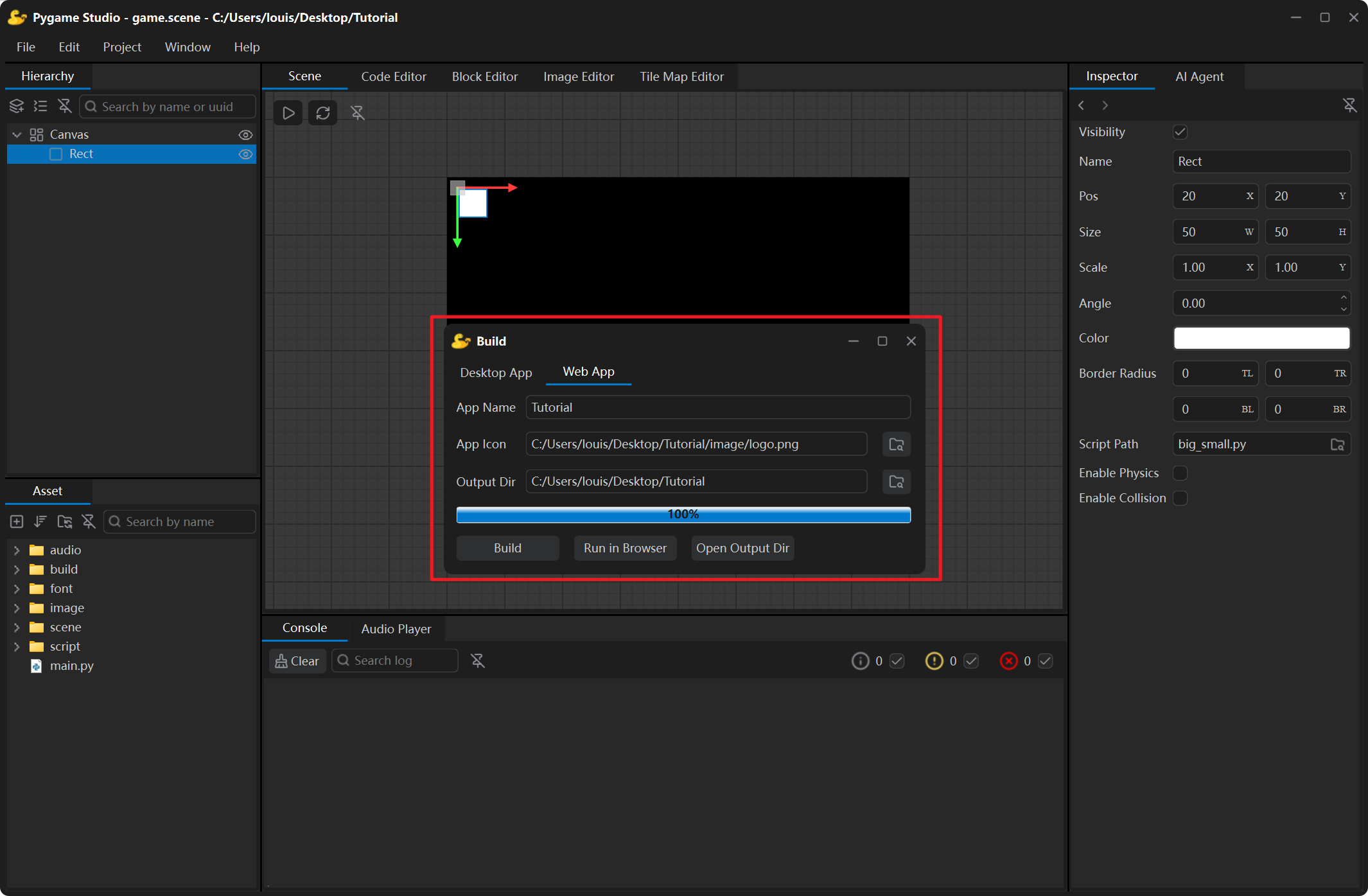
The Web App build packs the project into a tiny folder (index.html + game.zip) that plays right in any modern browser — the player does not need to install anything.
| Field | What it does |
|---|---|
| App Name | The page title; defaults to the project folder name. |
| App Icon | The browser tab icon; defaults to the project’s image/logo.png and is converted to favicon.ico while building. |
| Output Dir | Defaults to the project folder; the result is written to its build/Web/ subfolder. |
| Build | Starts the build; while it runs the button text turns into Stop. |
| Run in Browser | Starts a local server for the output folder and opens the browser automatically. |
Run in Browser is the quickest way to try a build: the button becomes available once a build has succeeded, starts a small local web server and opens the game page in your default browser.
<Output Dir>/build/Web/├─ index.html the page (opens the game, shows loading state and errors)├─ game.zip the protected project + a patched copy of the engine├─ favicon.ico the browser tab iconUpload index.html and game.zip to any static host (GitHub Pages, Netlify, an ordinary web server) to publish the game. Or run it with:
python -m http.server 8000 --directory "<Output Dir>/build/Web"Then open http://localhost:8000/ in the browser.
Build protection and encryption
Section titled “Build protection and encryption”Before a build, a copy of the project is made; the original project folder is never touched and everything happens in the copy. In the copy all comments and docstrings are removed; if pyobfus is installed the code is also lightly obfuscated; then the project’s resources (images, audio, fonts, scene files) are encrypted. project.pygs and main.py stay in plain text.
When a build fails
Section titled “When a build fails”| Log line or dialog | Meaning |
|---|---|
| Failed to build the project. Please check the log. | Scroll the Console up to the first line starting with ERROR: — the failing step is described there. |
| The build completed but the executable was not found: …/dist | The build finished normally but produced no executable — usually the app name contains characters the file system does not accept. Choose a simple name and build again. |
| Modules that could not be found, skipped: … | A module the game imports is not installed in the Python environment that runs the editor. Install it and build again. |