
Scene
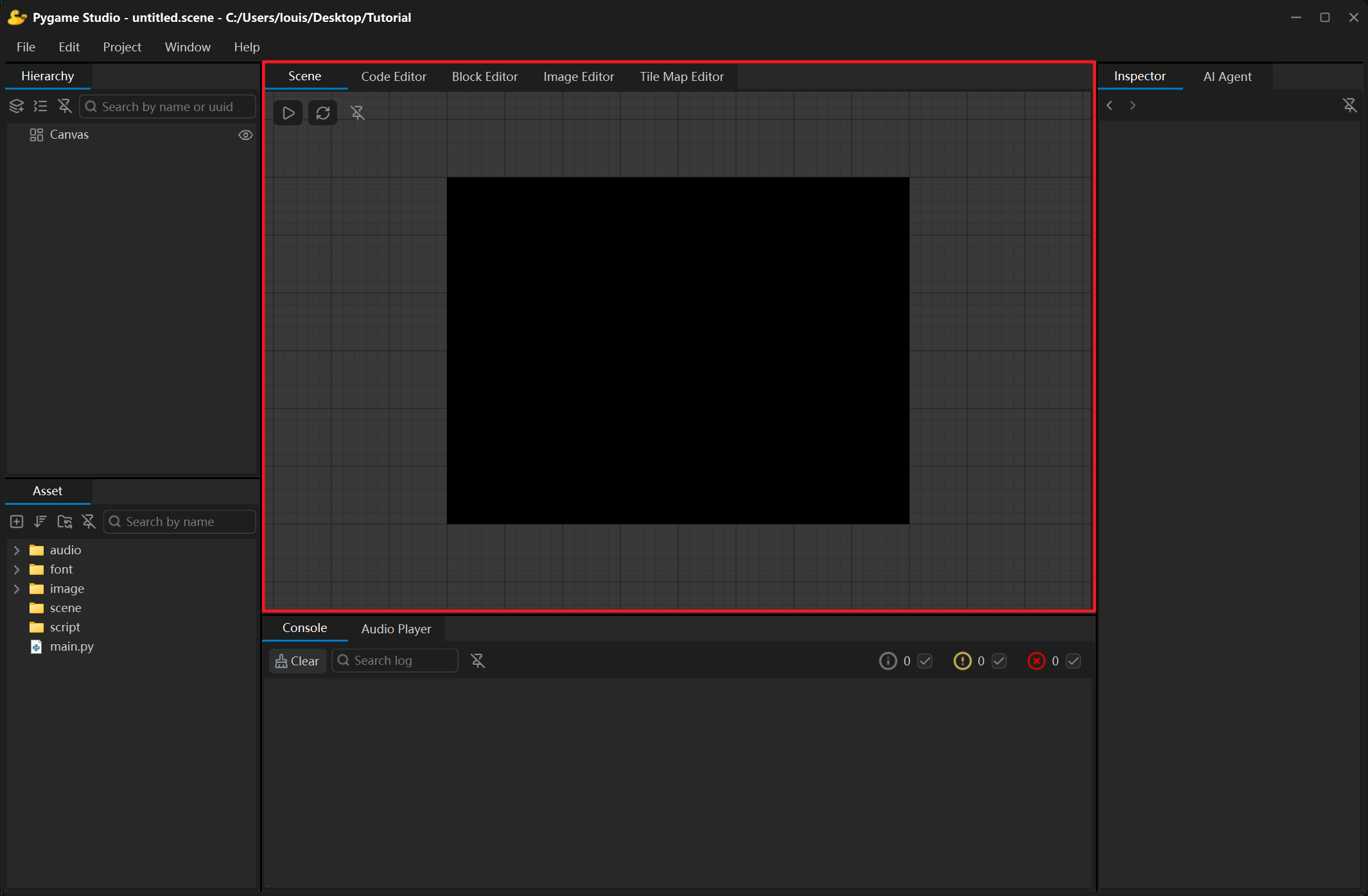
The Scene is the largest area in the middle of the editor, where the game screen is built: the rectangle in the centre of the grid is the game window, and every visible object is drawn inside it.
Toolbar
Section titled “Toolbar”| Control | What it does |
|---|---|
| Run | Runs the project — the same as Ctrl + R or the Project → Run menu. |
| Refresh | Redraws the preview; keep the button pressed to refresh continuously, so you can watch a change while you make it. |
| Detach | Floats the panel in its own window; click the button again or close the window to dock it back. |
While the scene has unsaved changes, the tab title shows an * in front of it (save with Ctrl + S or File → Save Scene).
Moving objects
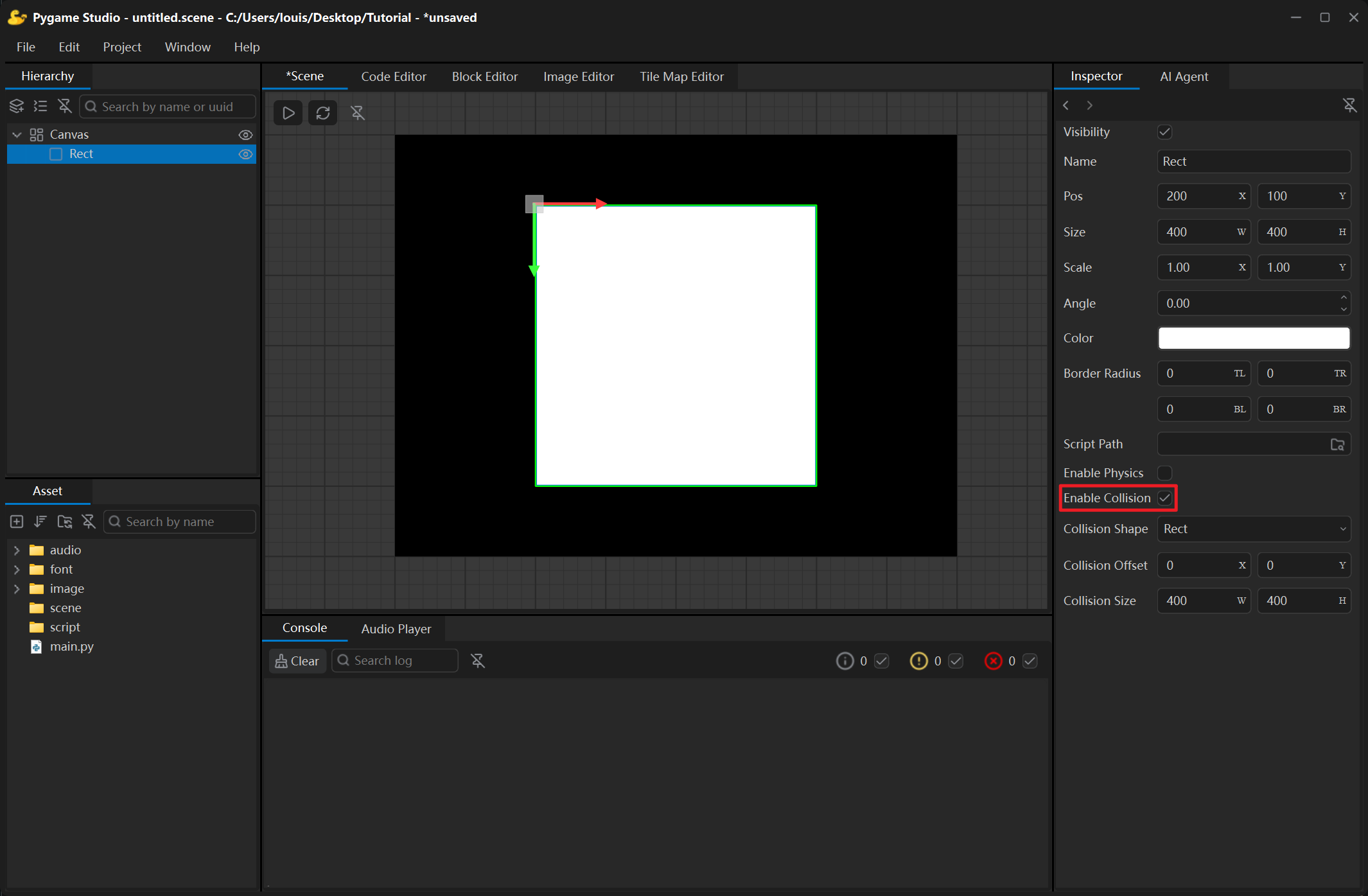
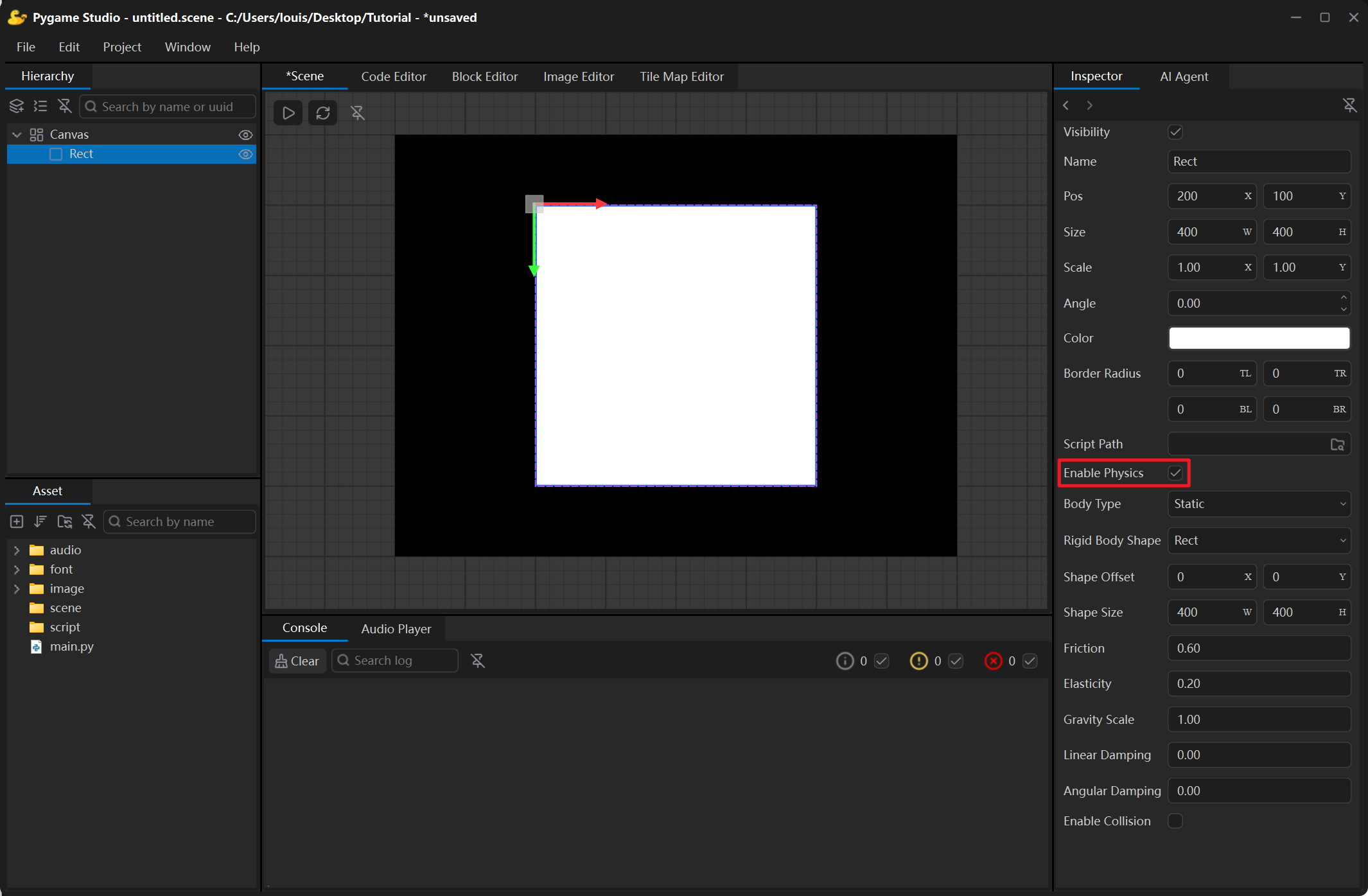
Section titled “Moving objects”A selected object shows a gizmo in its upper-left corner — press and drag it to move the object. Whenever the object lines up with the edge or centre of another object, a magenta smart guide appears and the object snaps into tidy rows and columns. Several selected objects move together, and the Pos values in the Inspector update while you drag. Exact values are set in the Inspector.
Navigating the view
Section titled “Navigating the view”- Mouse wheel — zooms with the pointer as the centre (0.2× to 5×).
- Middle mouse button drag — pans the view.
Running the project
Section titled “Running the project”Clicking Run starts the game window. Everything the game outputs is shown in the Console in real time; close the game window to return to the editor.